Who is a Returning Student?
- Somone who has taken classes at CCAC and is returning after a year or more break
Steps to Re-Enrolling and Getting Started
Confirm your Identification
- From a web browser, go to https://ccac.edu/enrollment/registration/index.php#virtual-registration-welcome-center
- Click "Join Now" Button
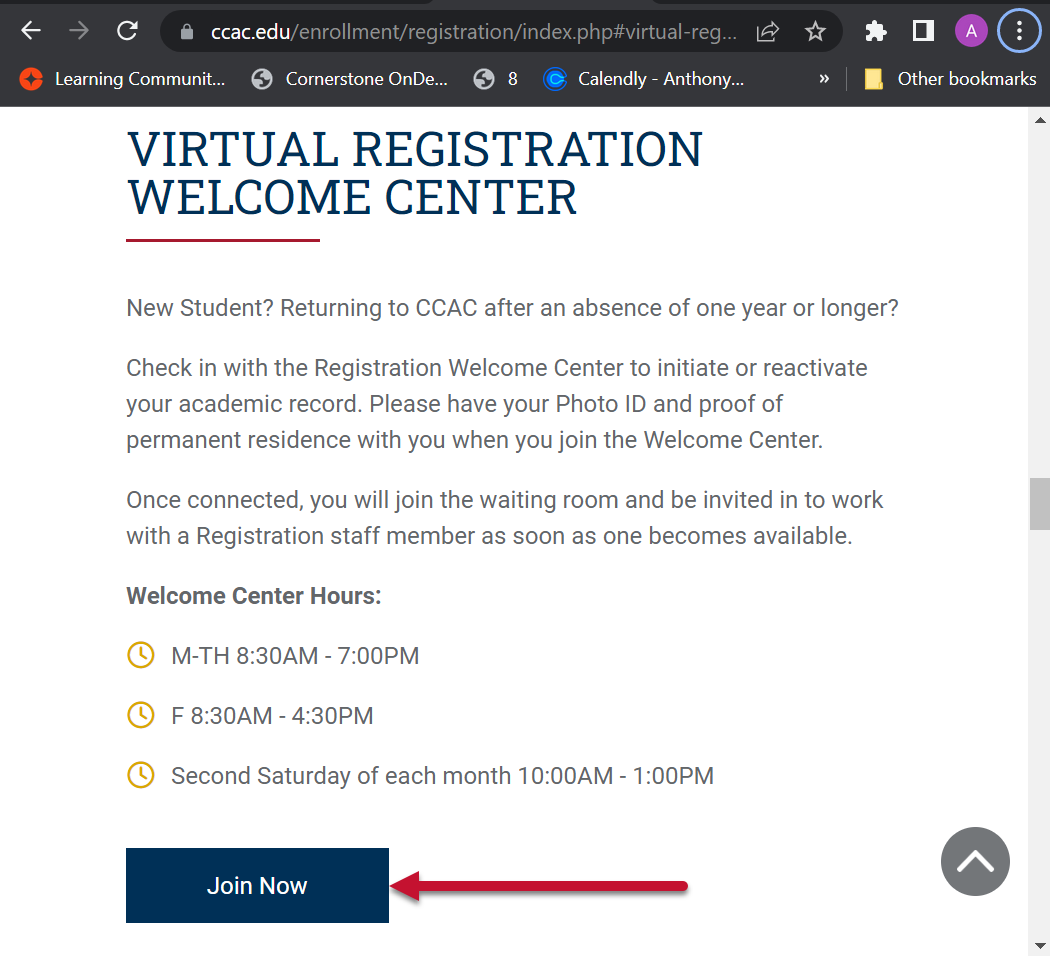
- Zoom will launch
- You will be in a virtual waiting room. The next registration staff member will be able to assist you.
Register for Classes
Meet with an Academic Advisor
Go to https://ccac.edu/academics/academic-advising.php#how-to-meet-with-an-advisor to see all the ways to meet with an advisor.
Use CCAC Self-Service
- From a web browser go to: https://selfservice.ccac.edu/Student/Student/Courses/
Registration Form
- From a web browser, go to https://www.ccac.edu/about/forms.php#registration-and-advising-forms
- Select Registration form
- Complete and sign the DocuSign Registration form
Pay for Classes
Pay by Credit Card
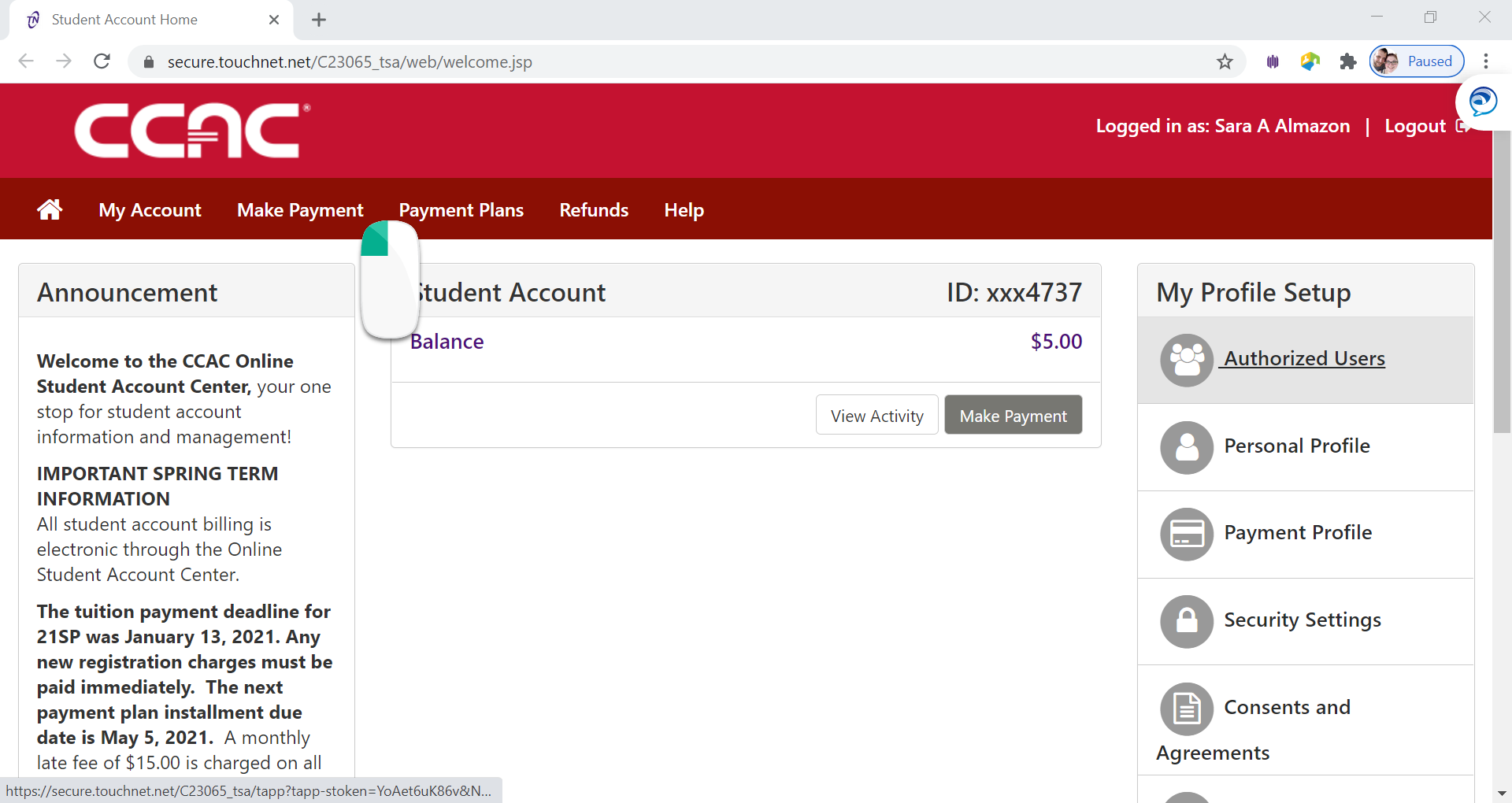
- Log into the Online Student Account Center - Access the Online Student Account Center - For Students
-
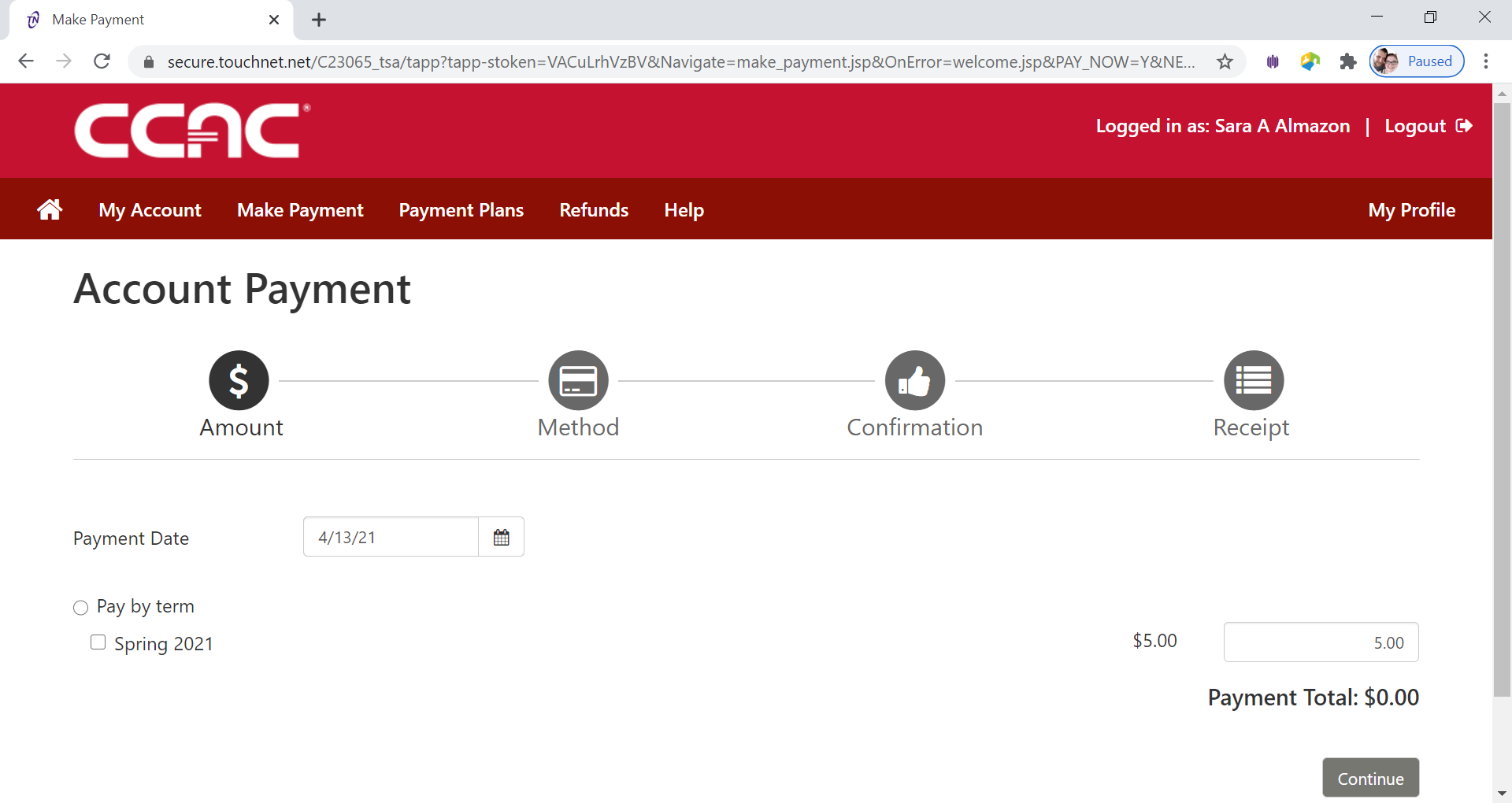
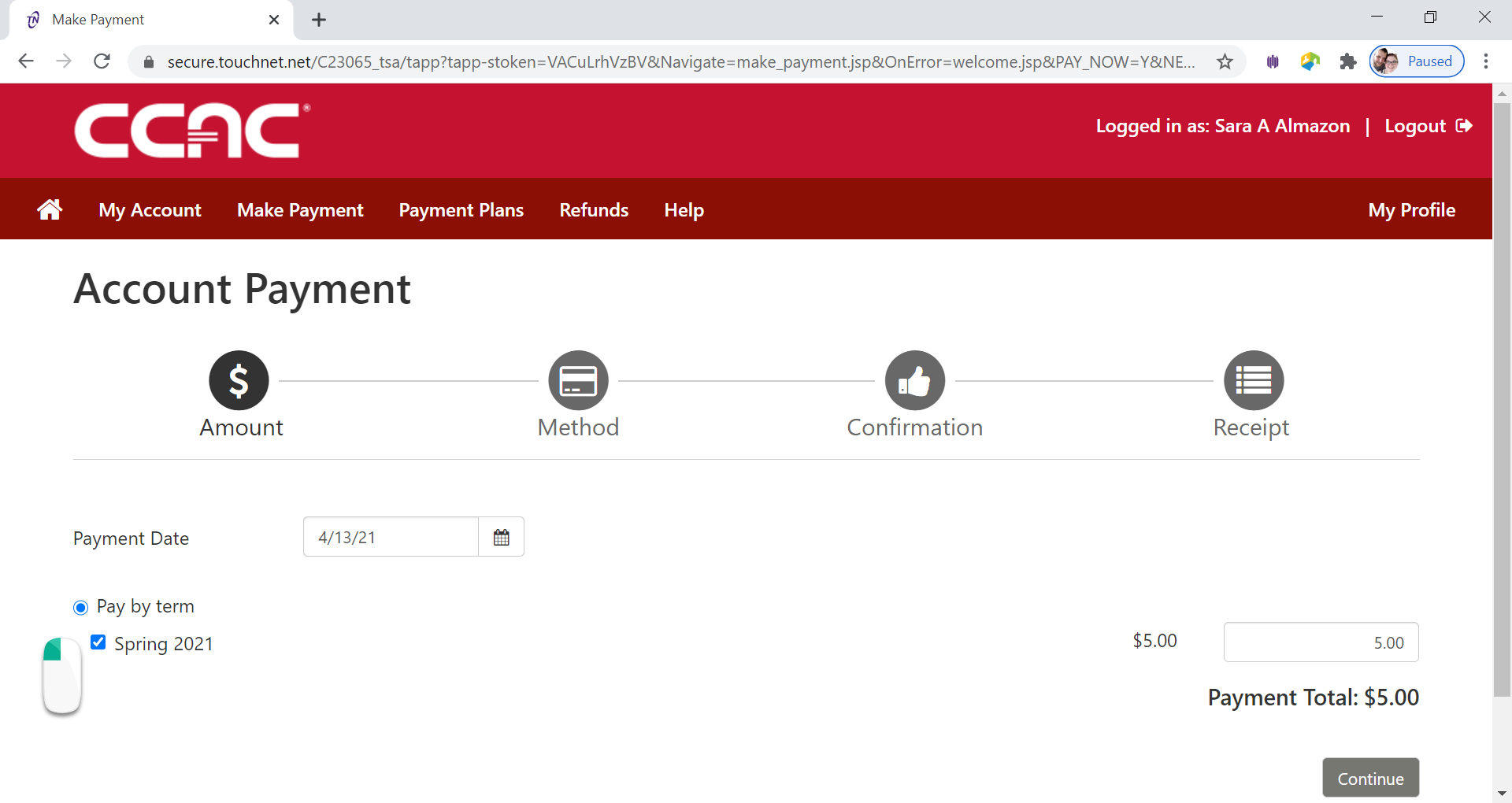
Click Make a Payment on the Menu Bar
-
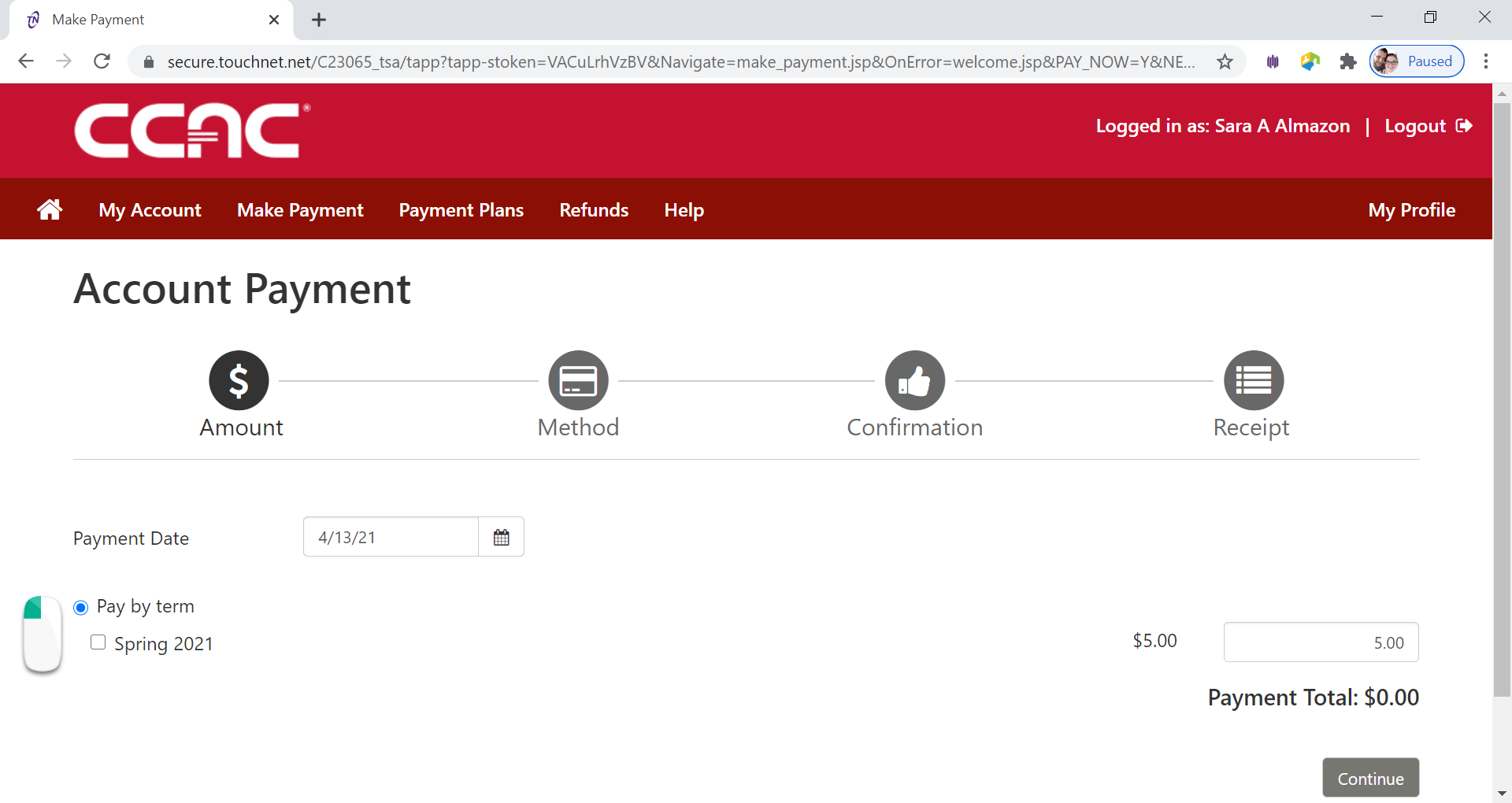
See the Account Payment Screen
-
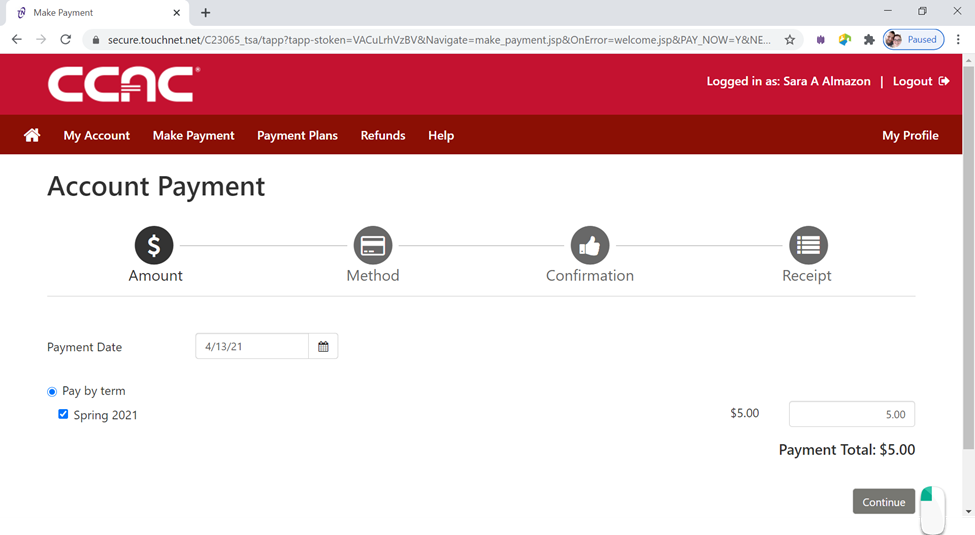
Click Pay by Term button
-
Select the Term you want to pay by clicking the check box next to the term
-
Click Continue button
-
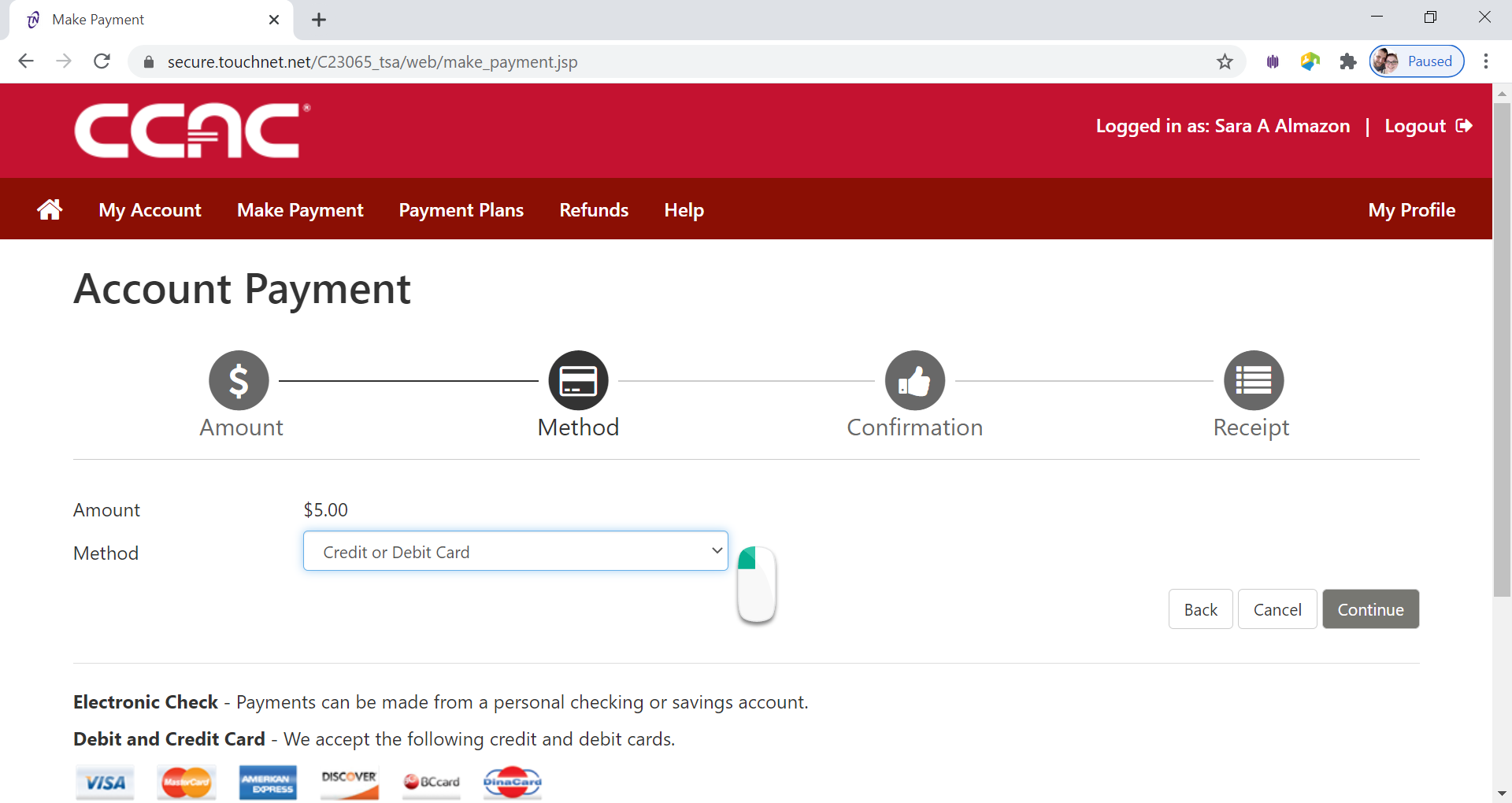
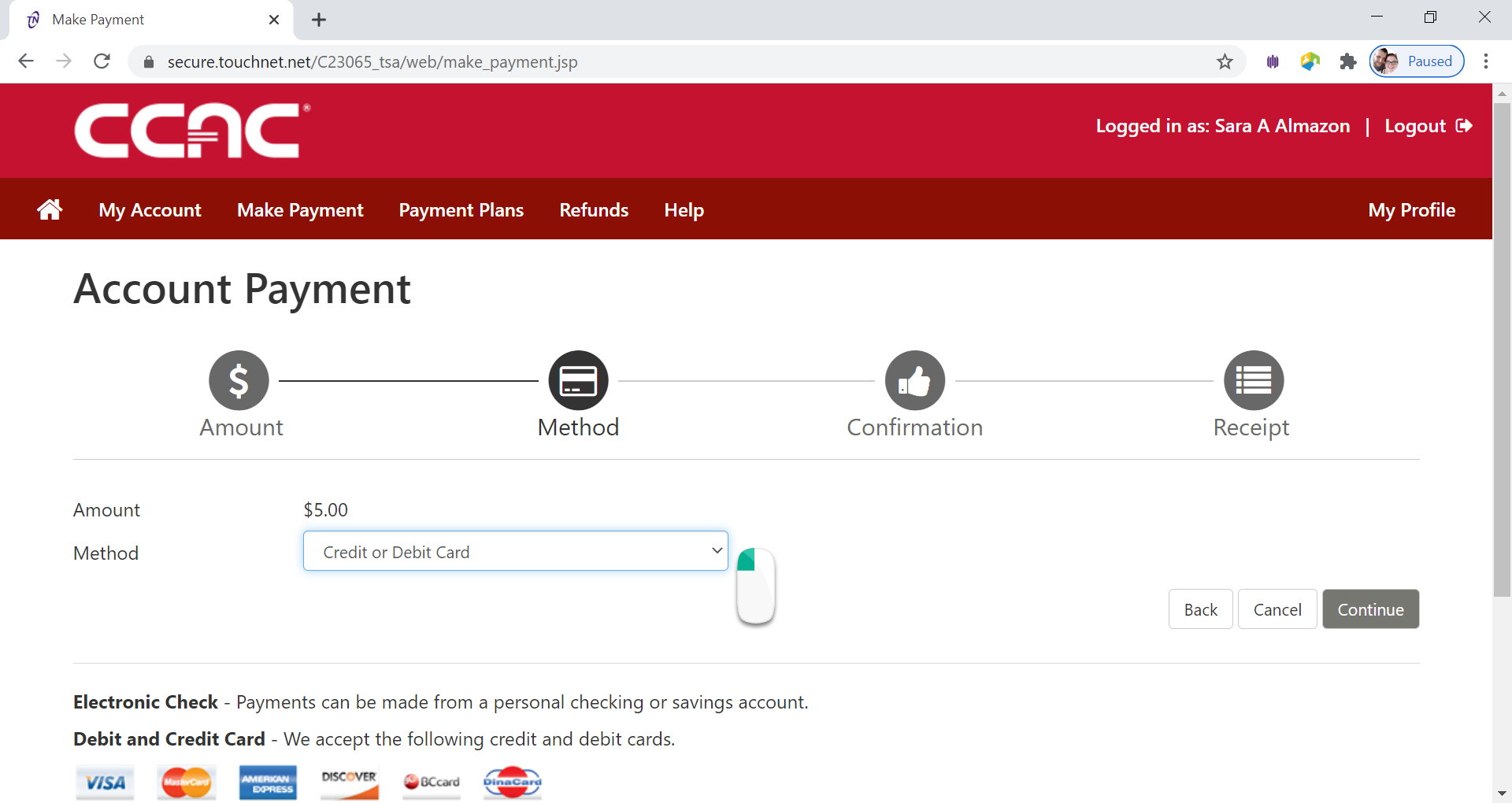
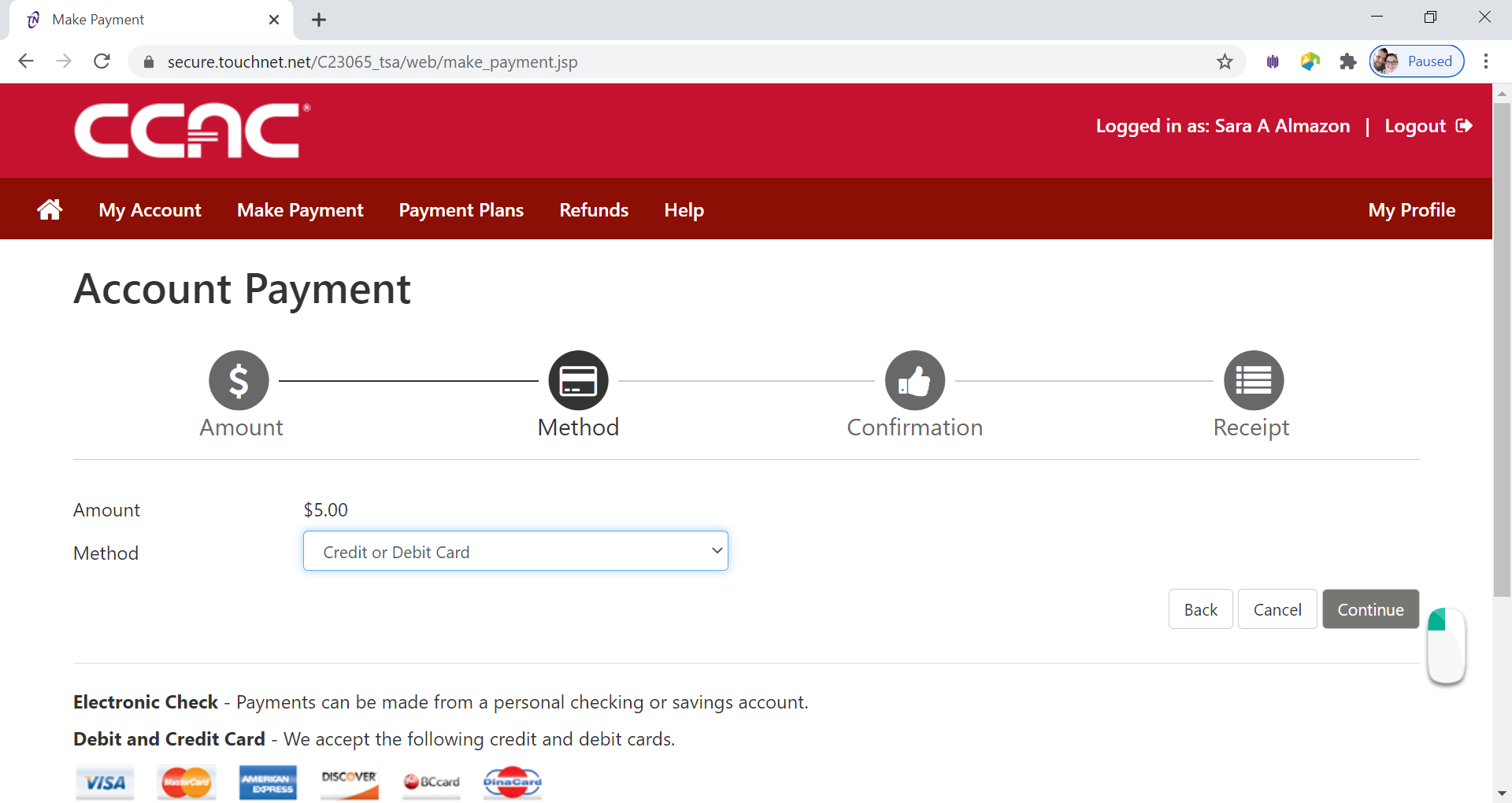
Select Payment Method from Drop Down Menu
-
Choose Credit or Debit Card from Method drop down menu
-
Click Continue button
-
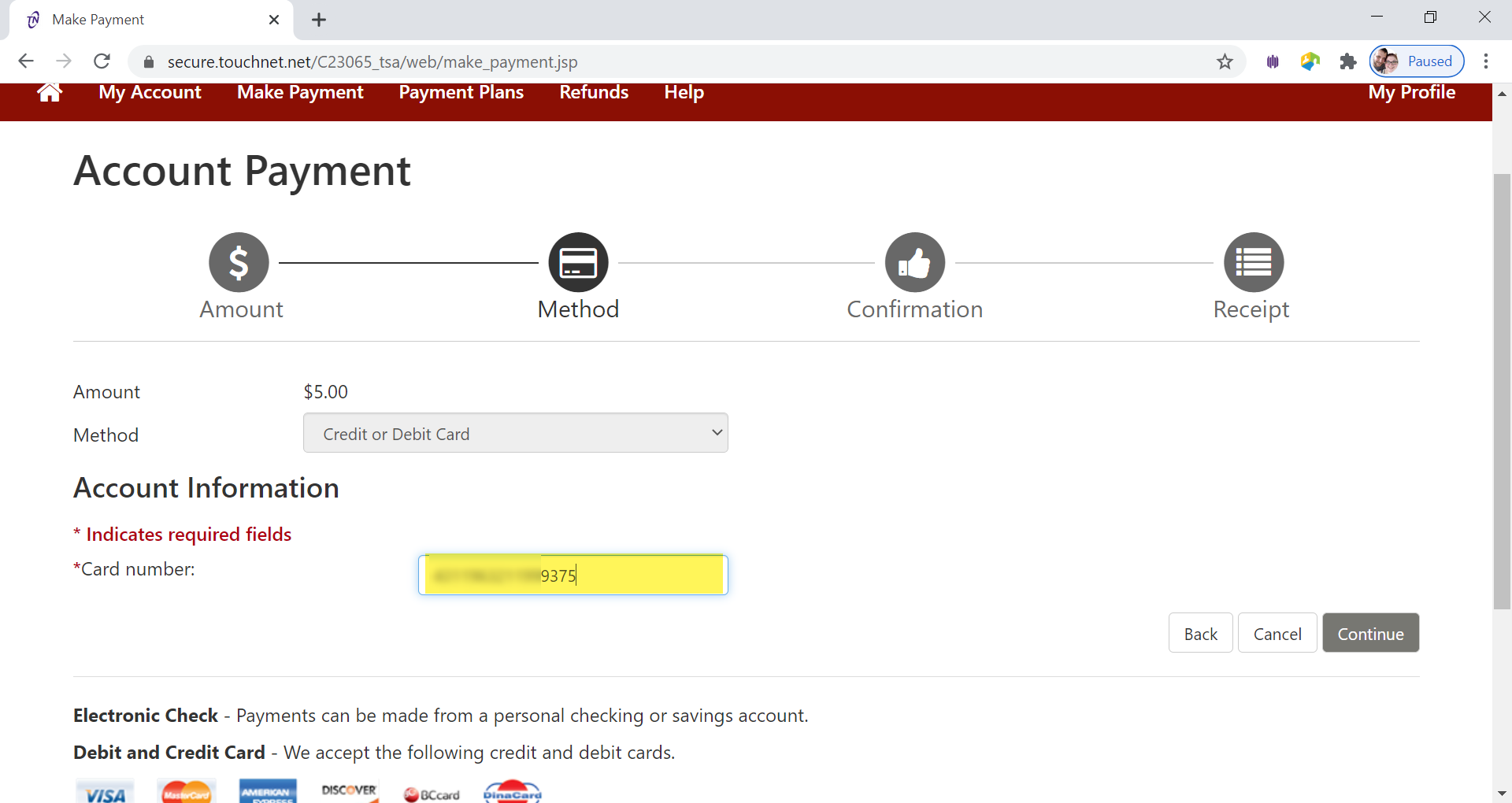
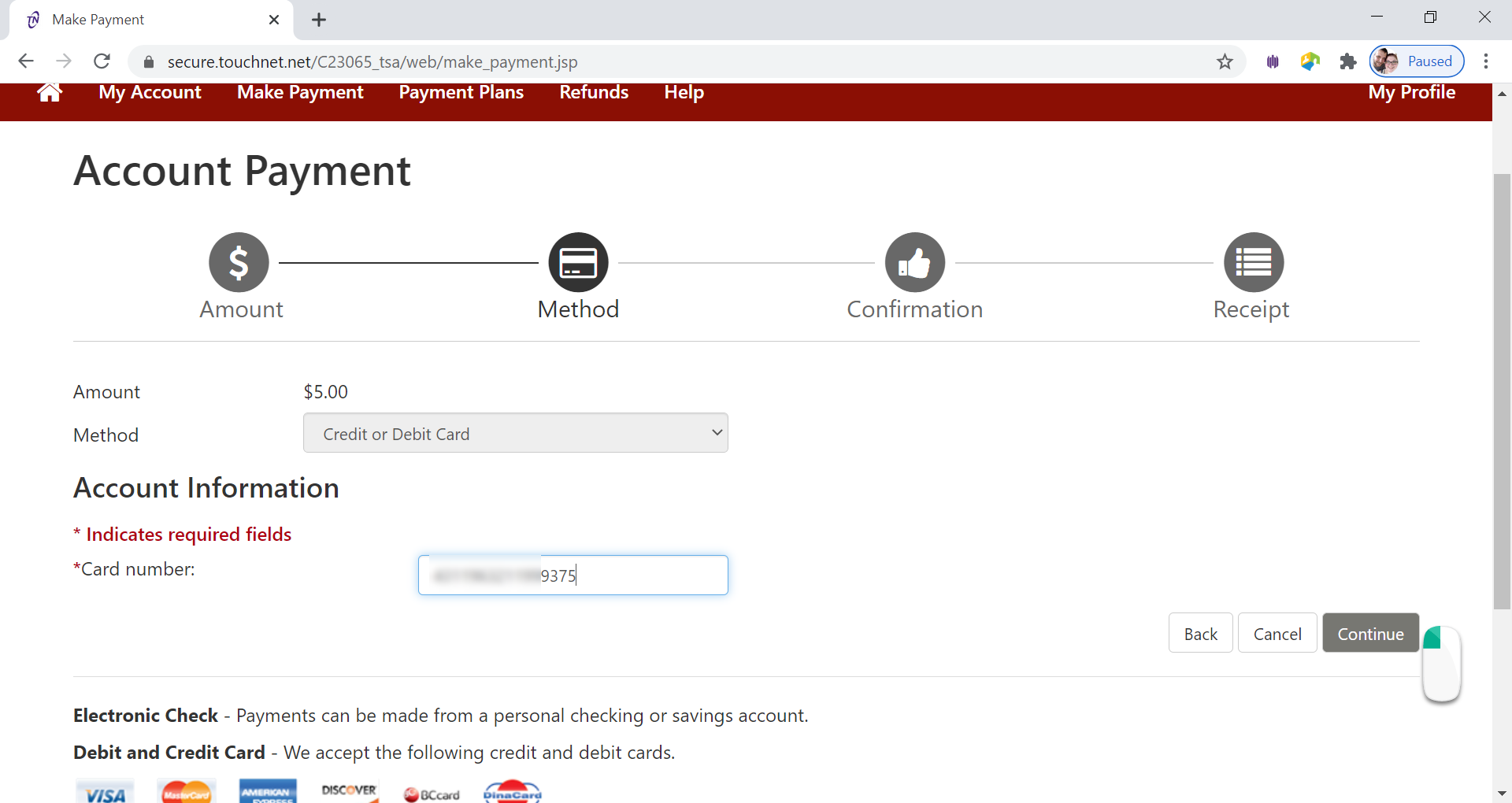
Enter Card Number in Card Number Box
-
Click Continue button
-
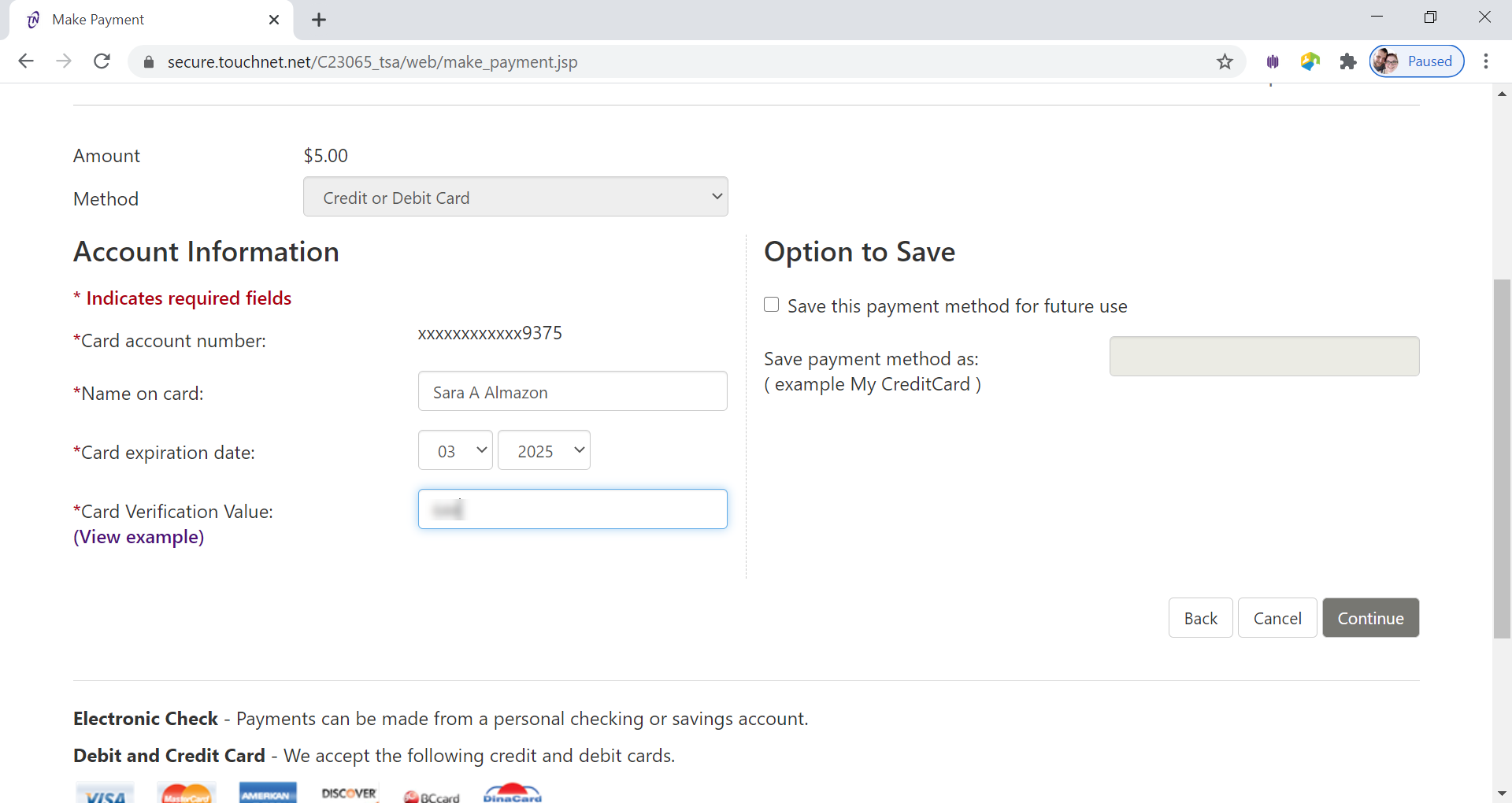
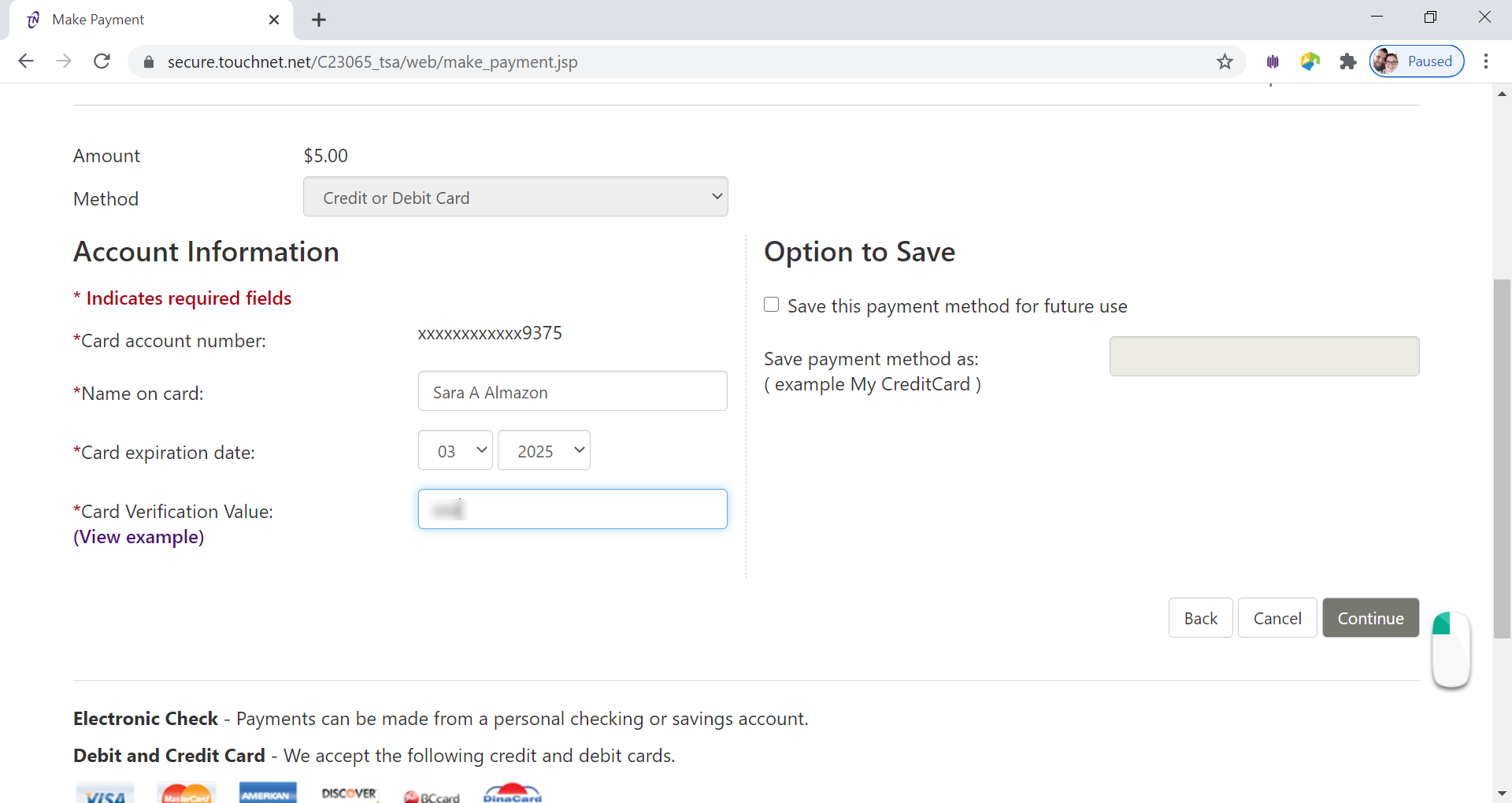
Enter Name on Card, Card Expiration Date, and Card Verification Code (Security Code)
-
Click Continue Button
-
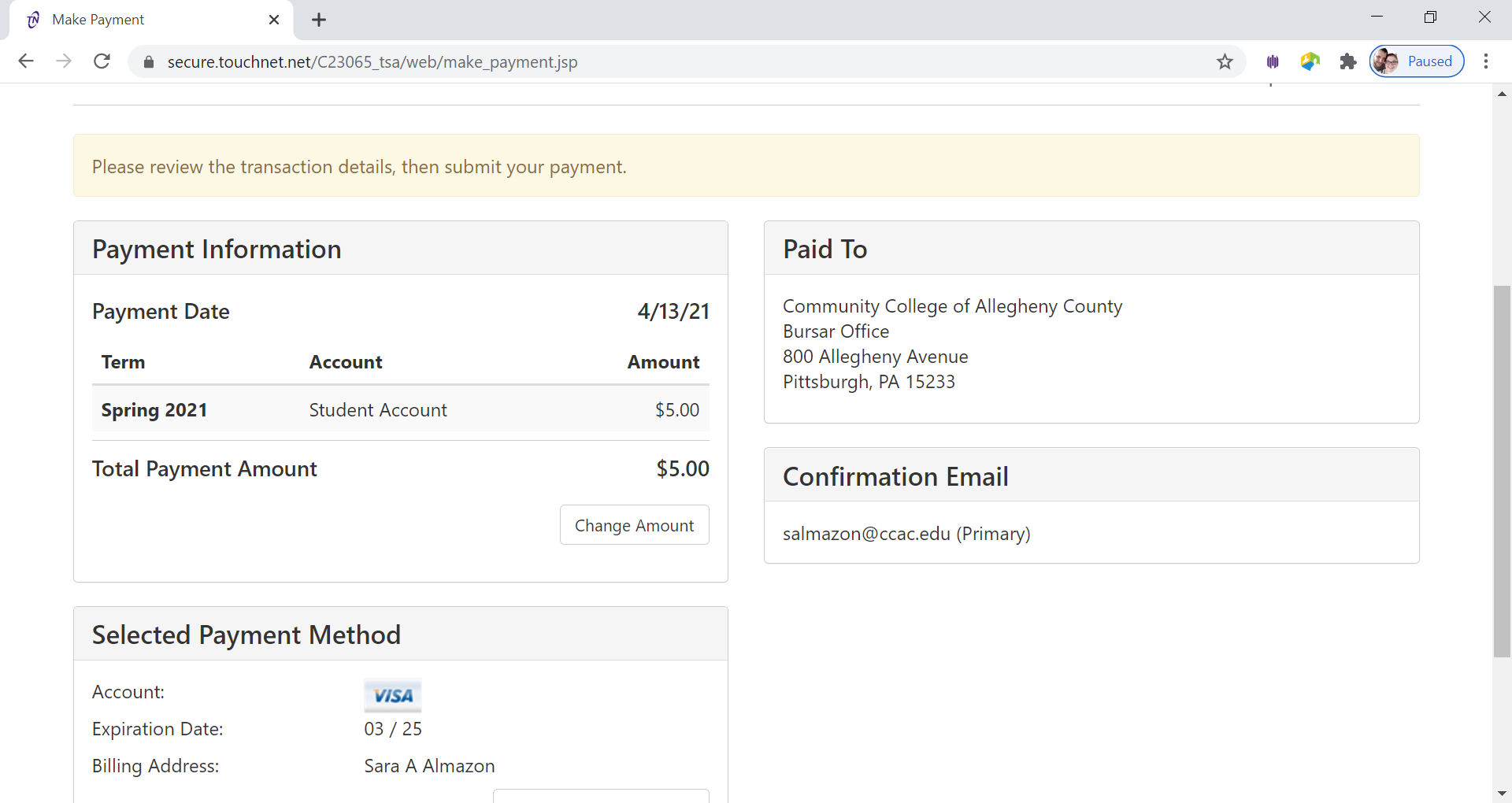
Review Payment Information
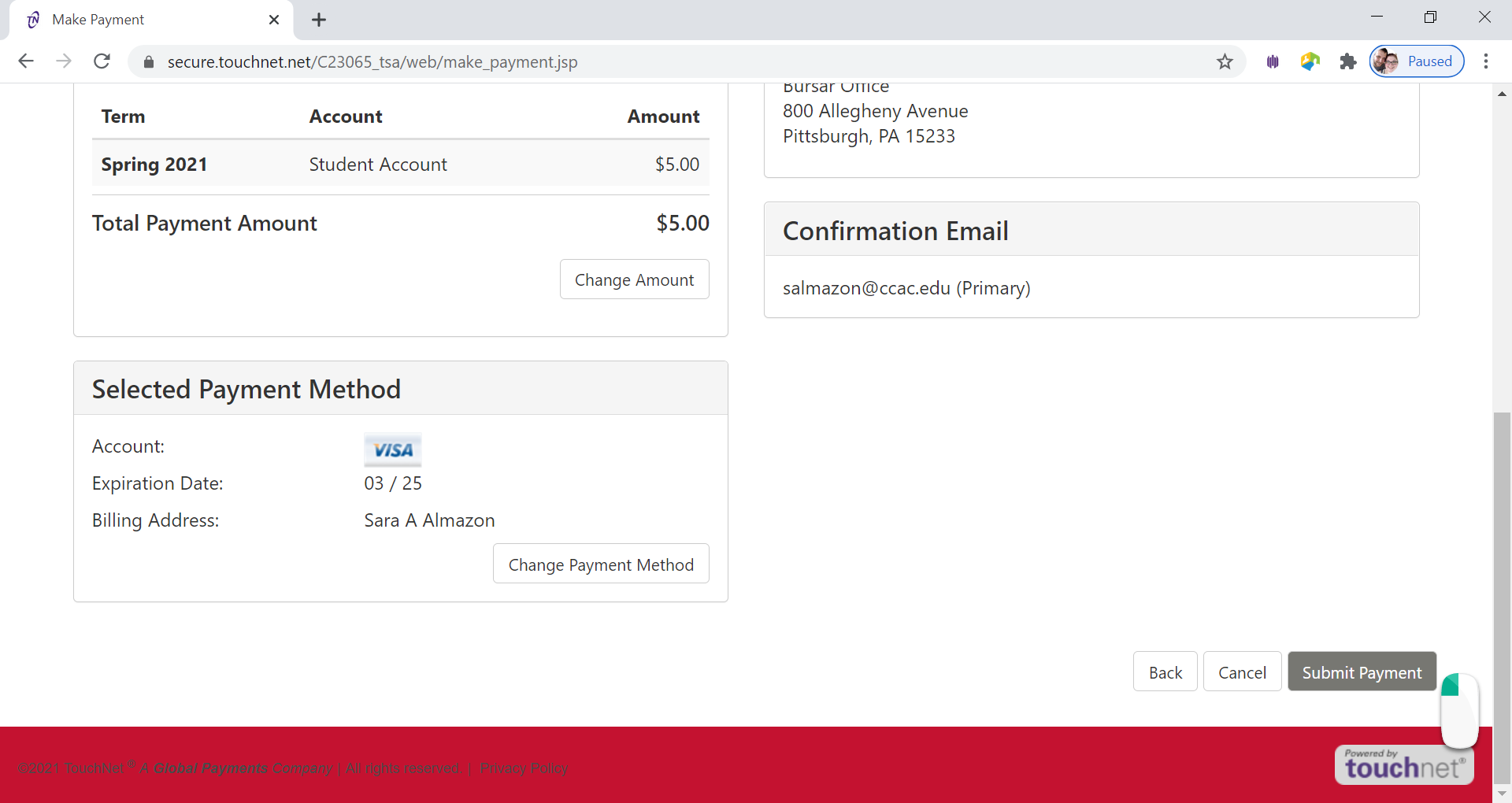
If you need to correct anything about your payment, click the back button. -
Click Submit Payment Button
-
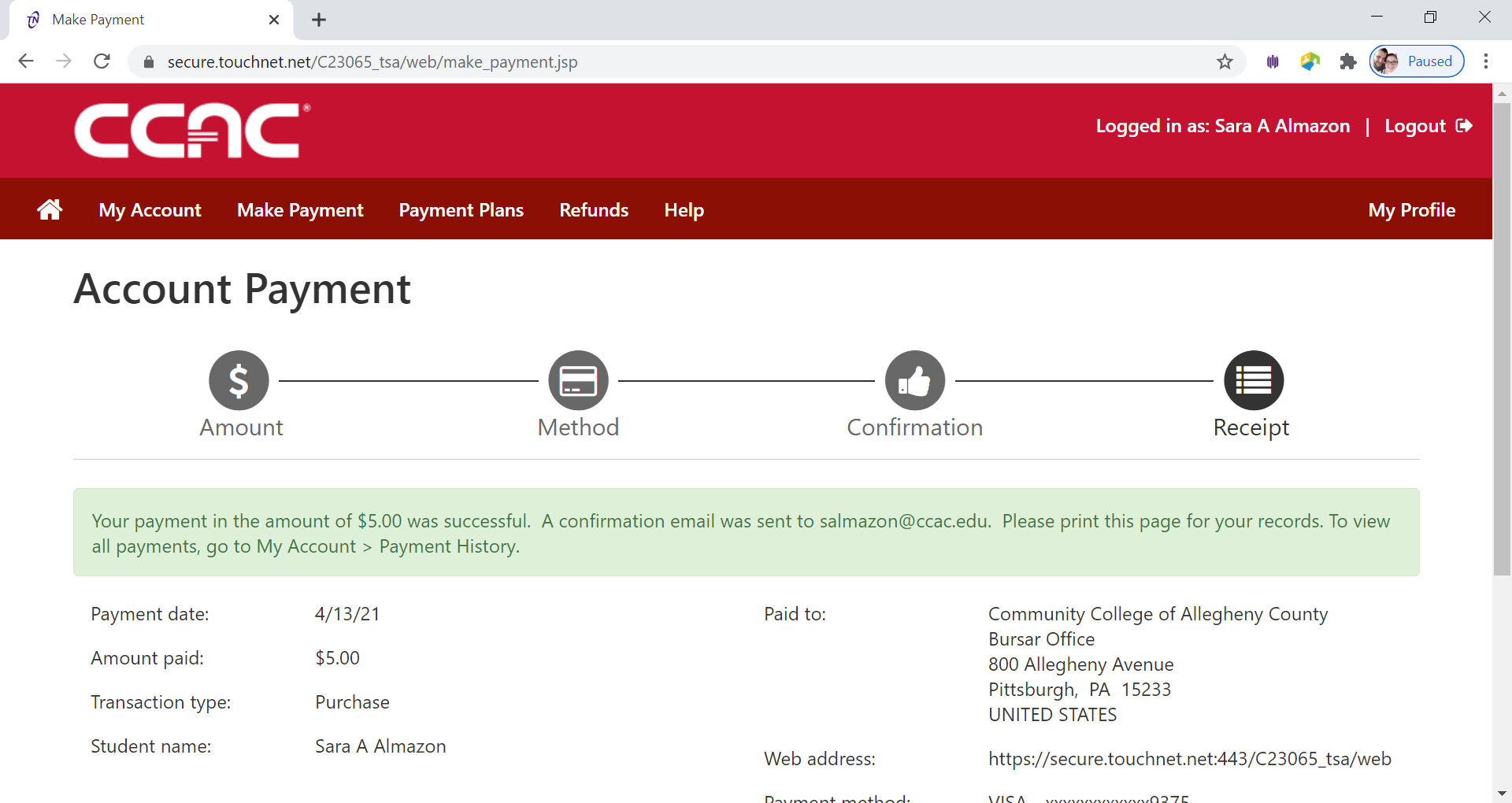
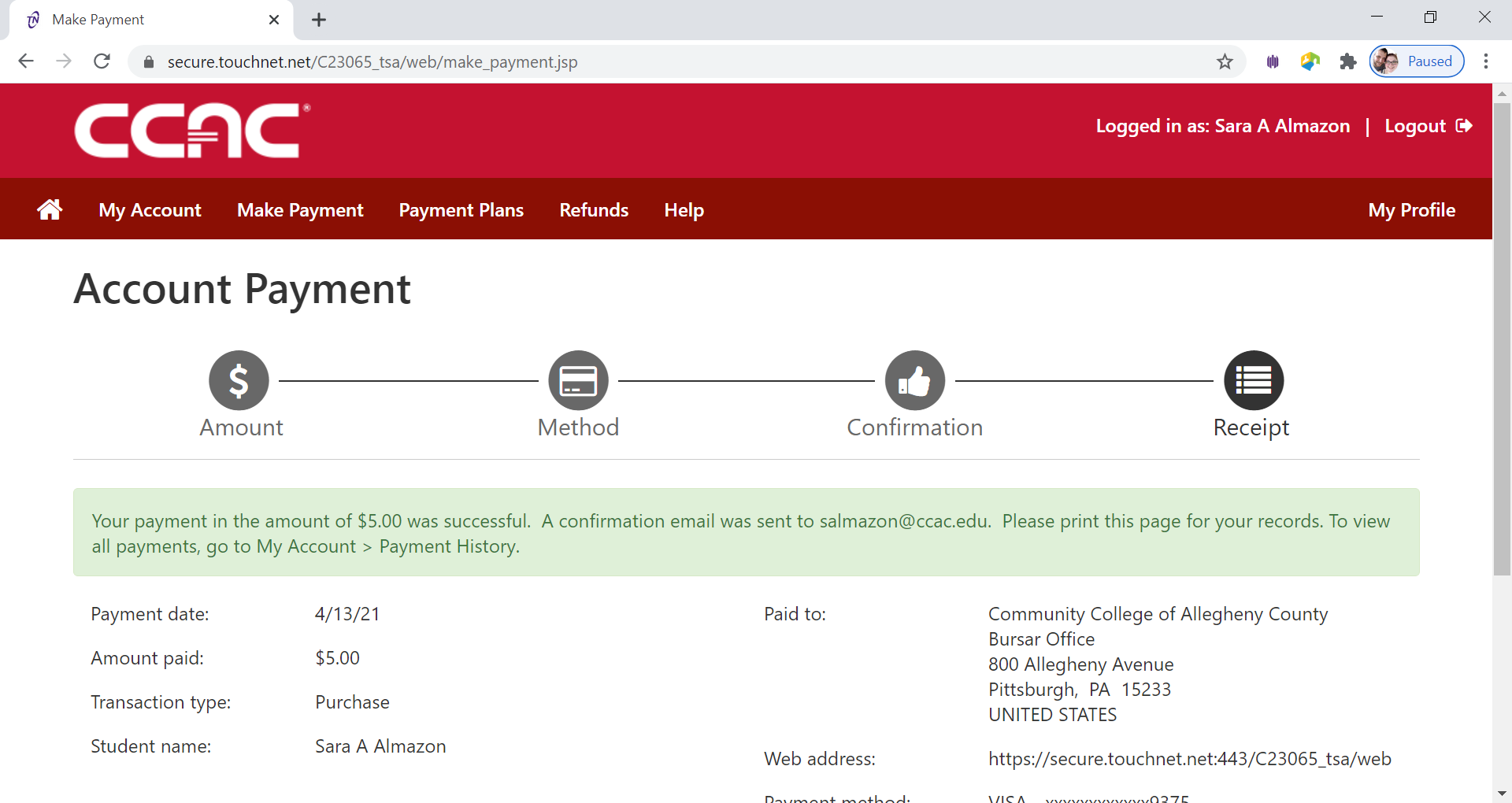
Confirmation Page will appear
Payment confirmation will be sent to your CCAC Academic Email
Alternative Way - Bank Wire
- Log into the Online Student Account Center - Access the Online Student Account Center - For Students
- Click Make a Payment on the Menu Bar
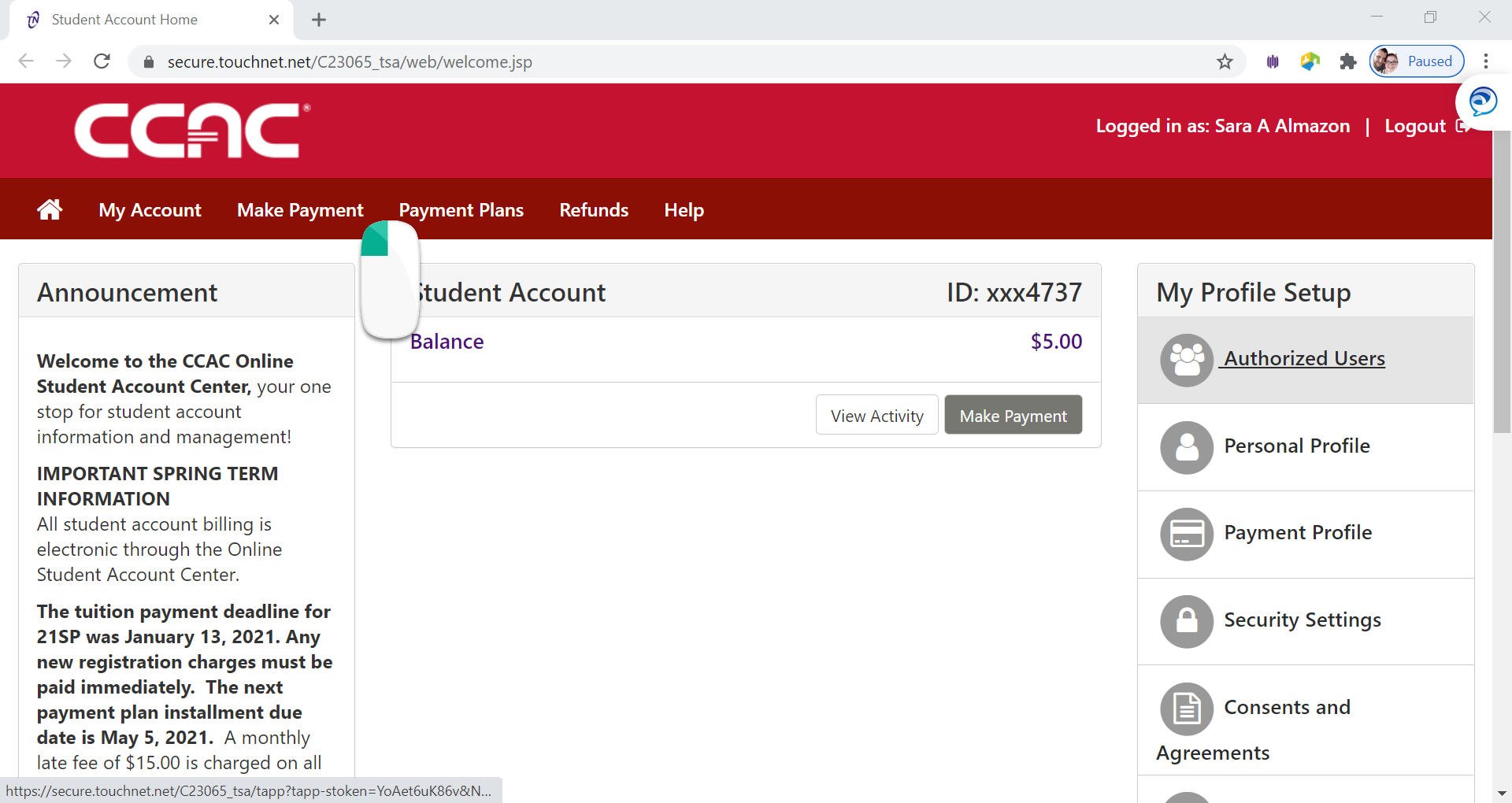
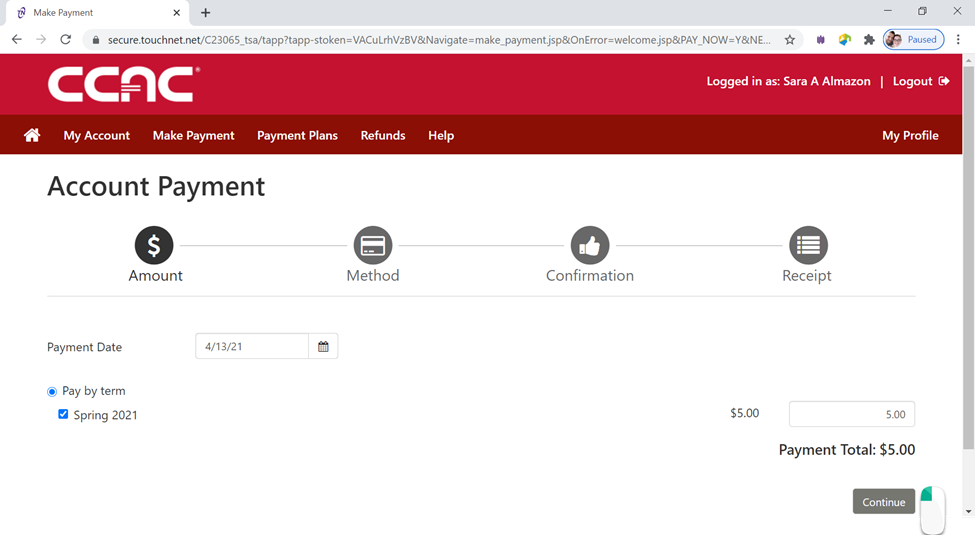
- See the Account Payment Screen
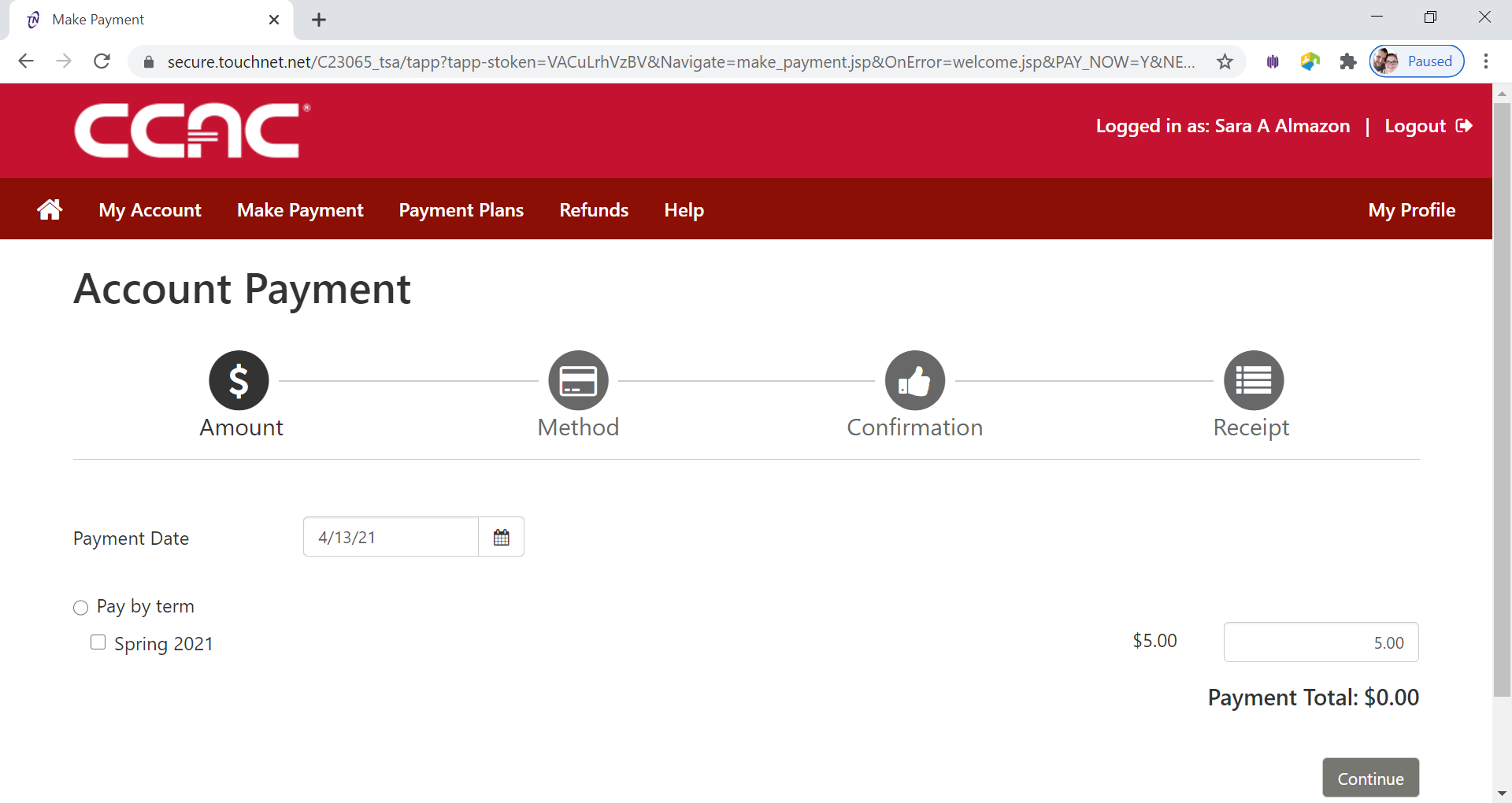
- Click Pay
by Term button
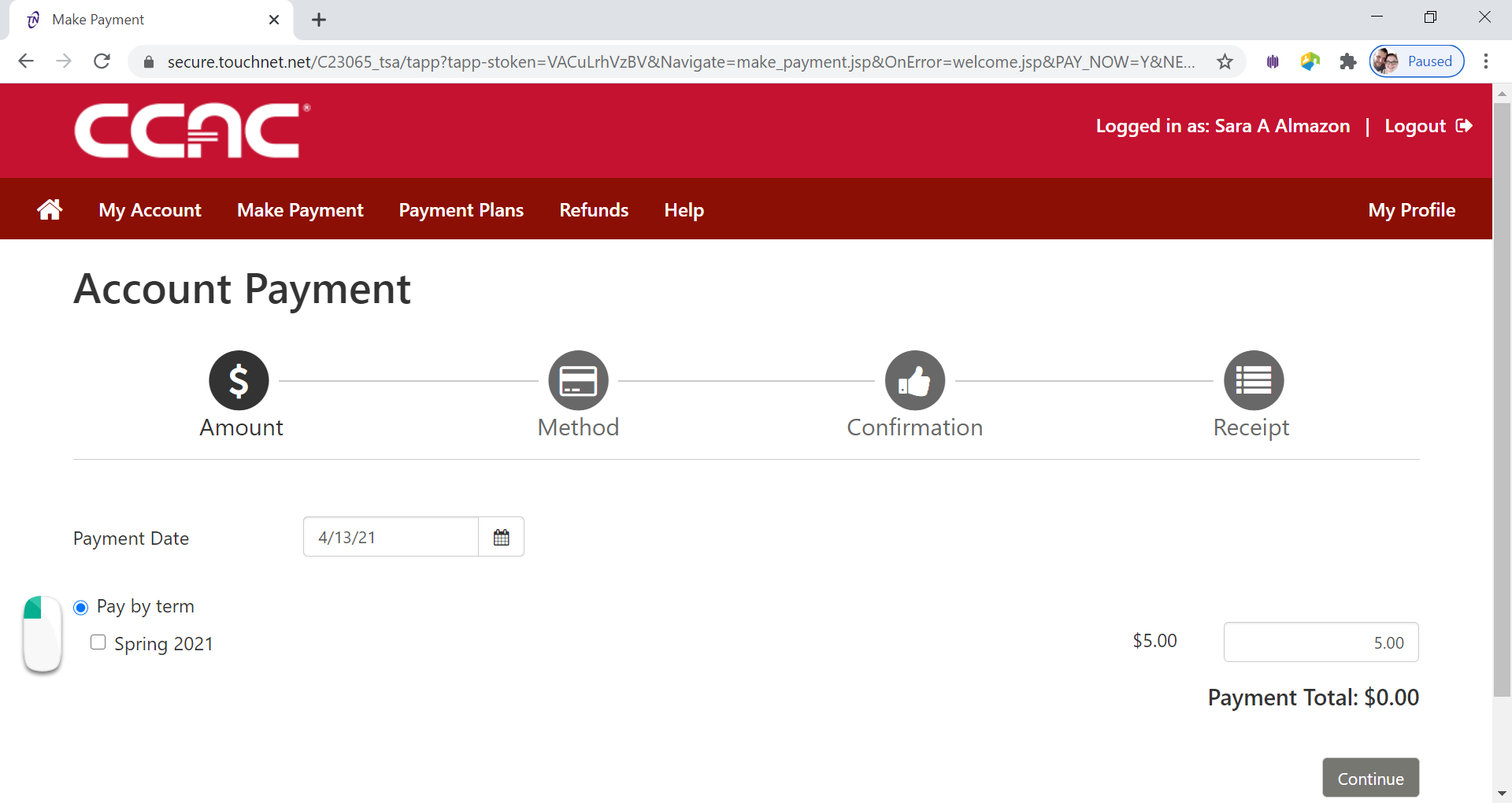
- Select the Term you want to pay by clicking the check box next to the term
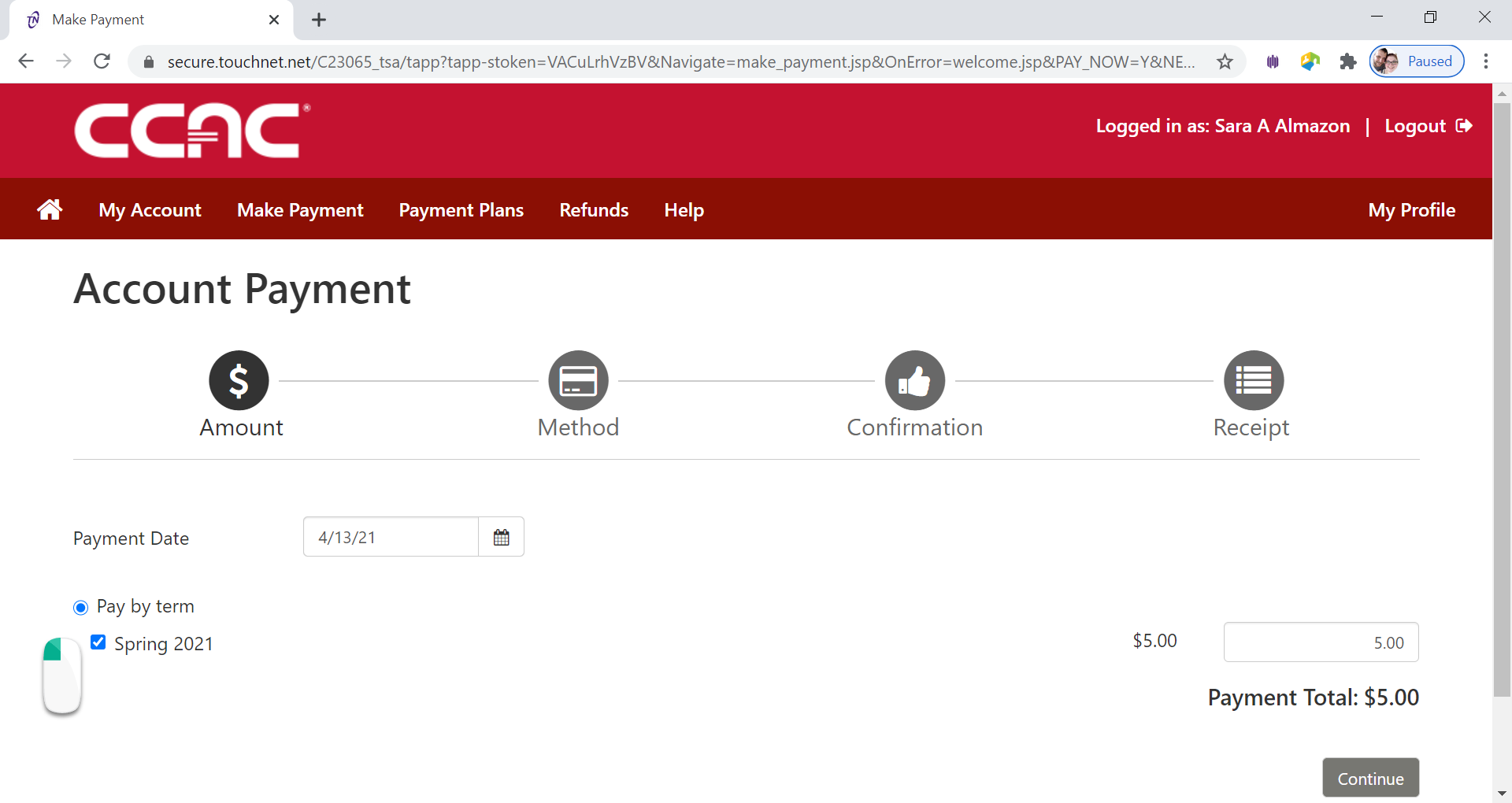
- Click Continue button
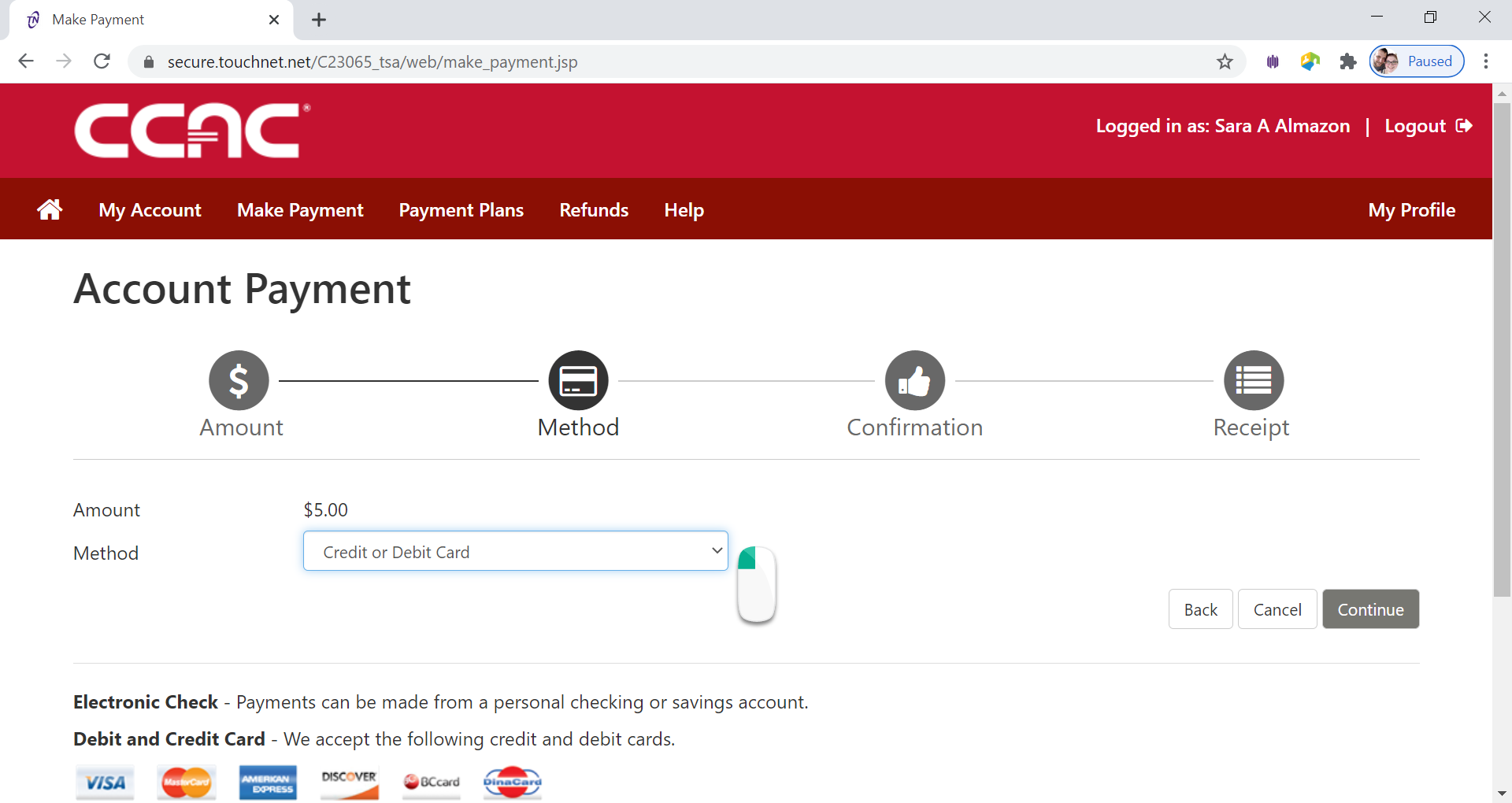
- Select Payment Method from the Drop Down Menu
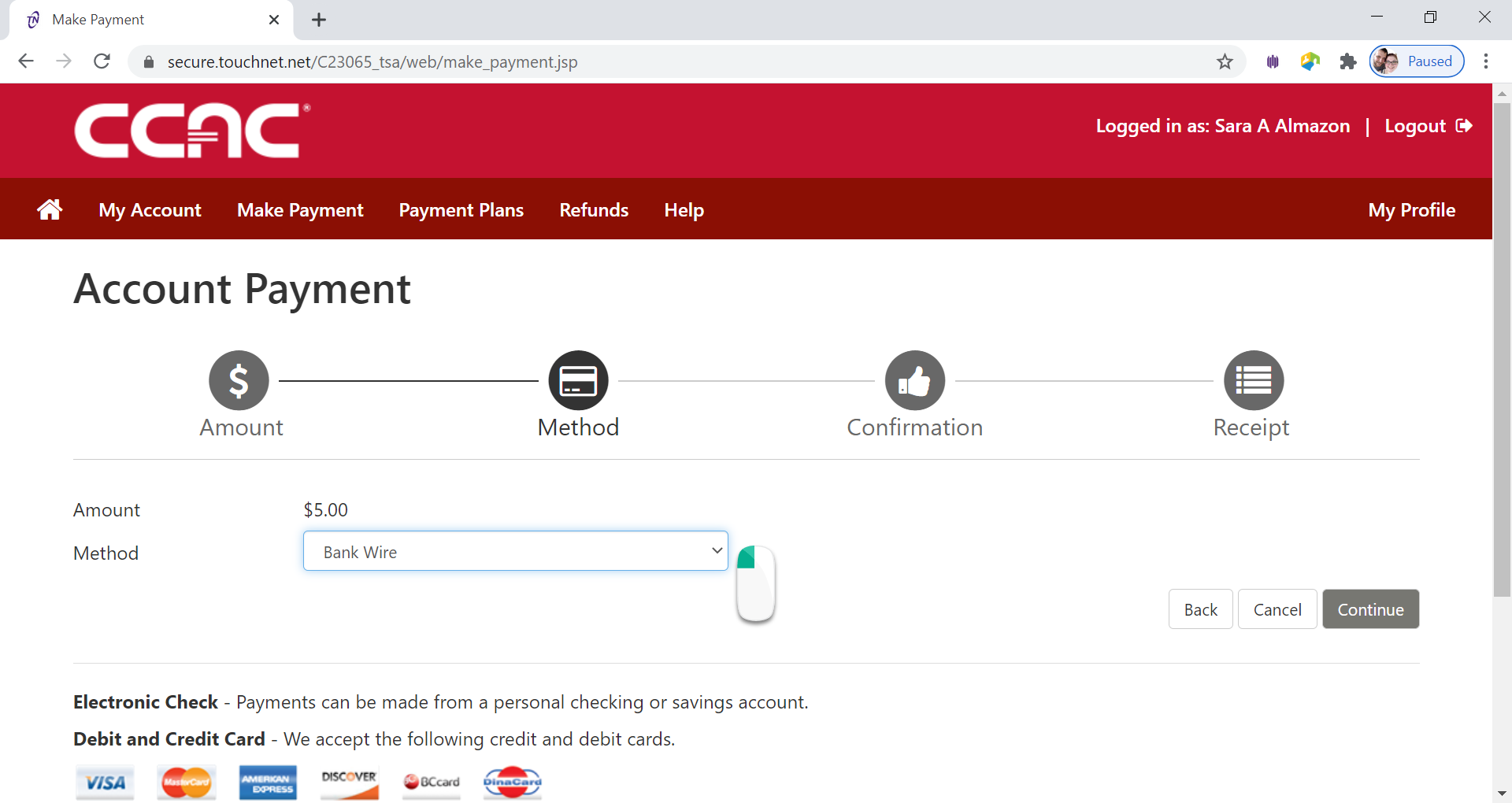
- Select Bank Wire from Method drop down menu
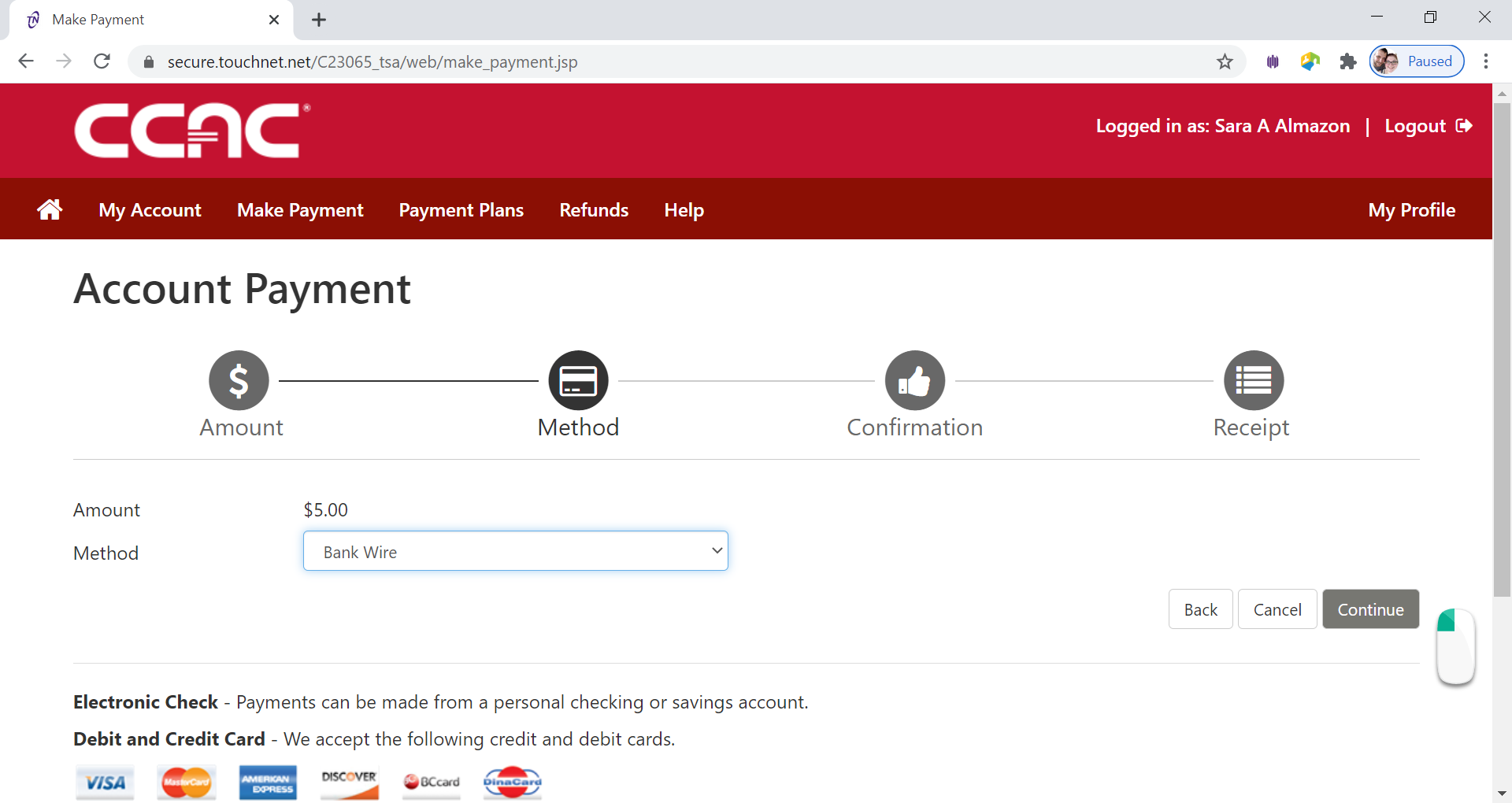
- Click Continue button
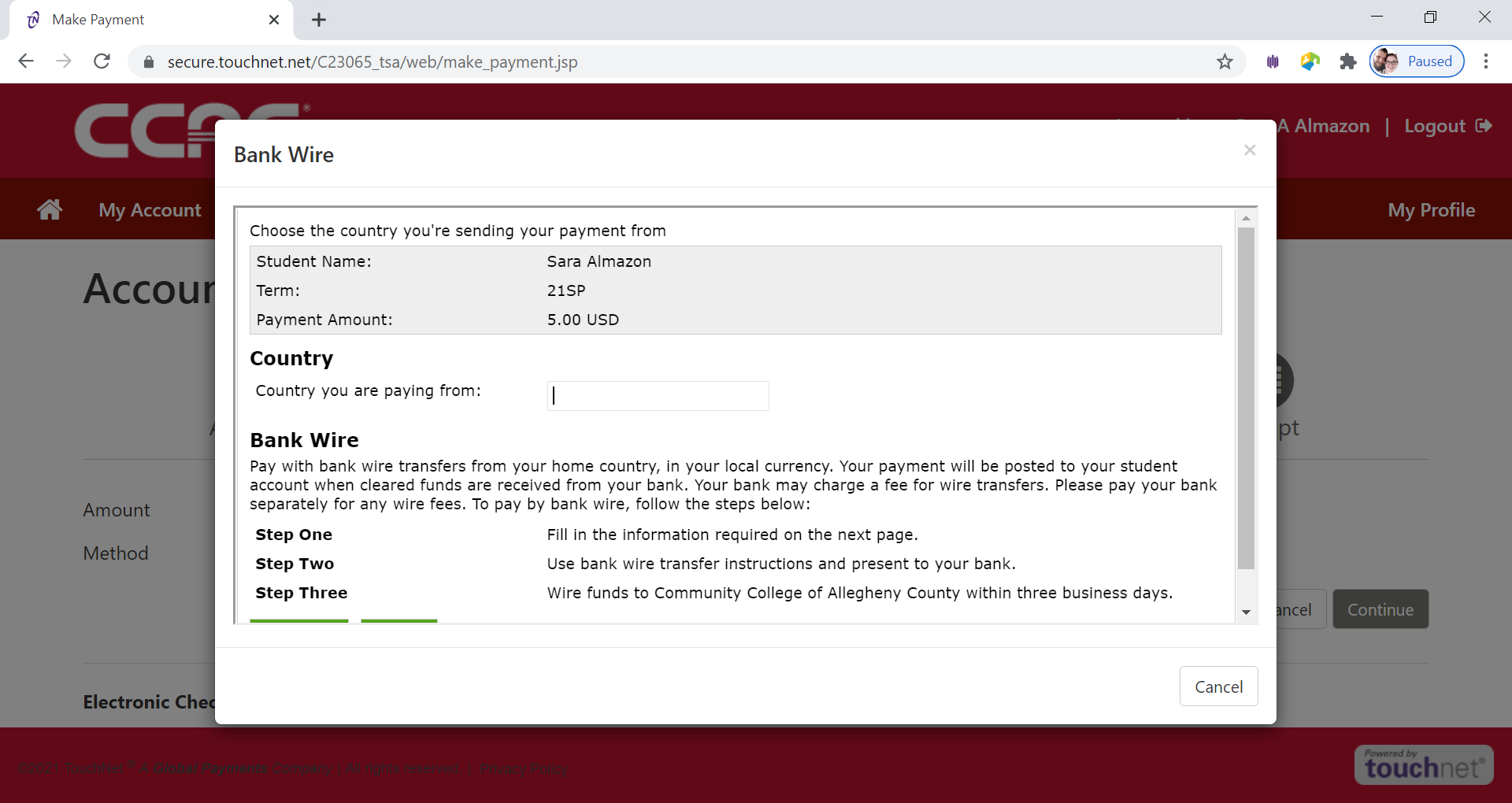
- The Choose the Country Page will appear
-
Type in the Country the payment is coming from in the Country you are paying from box
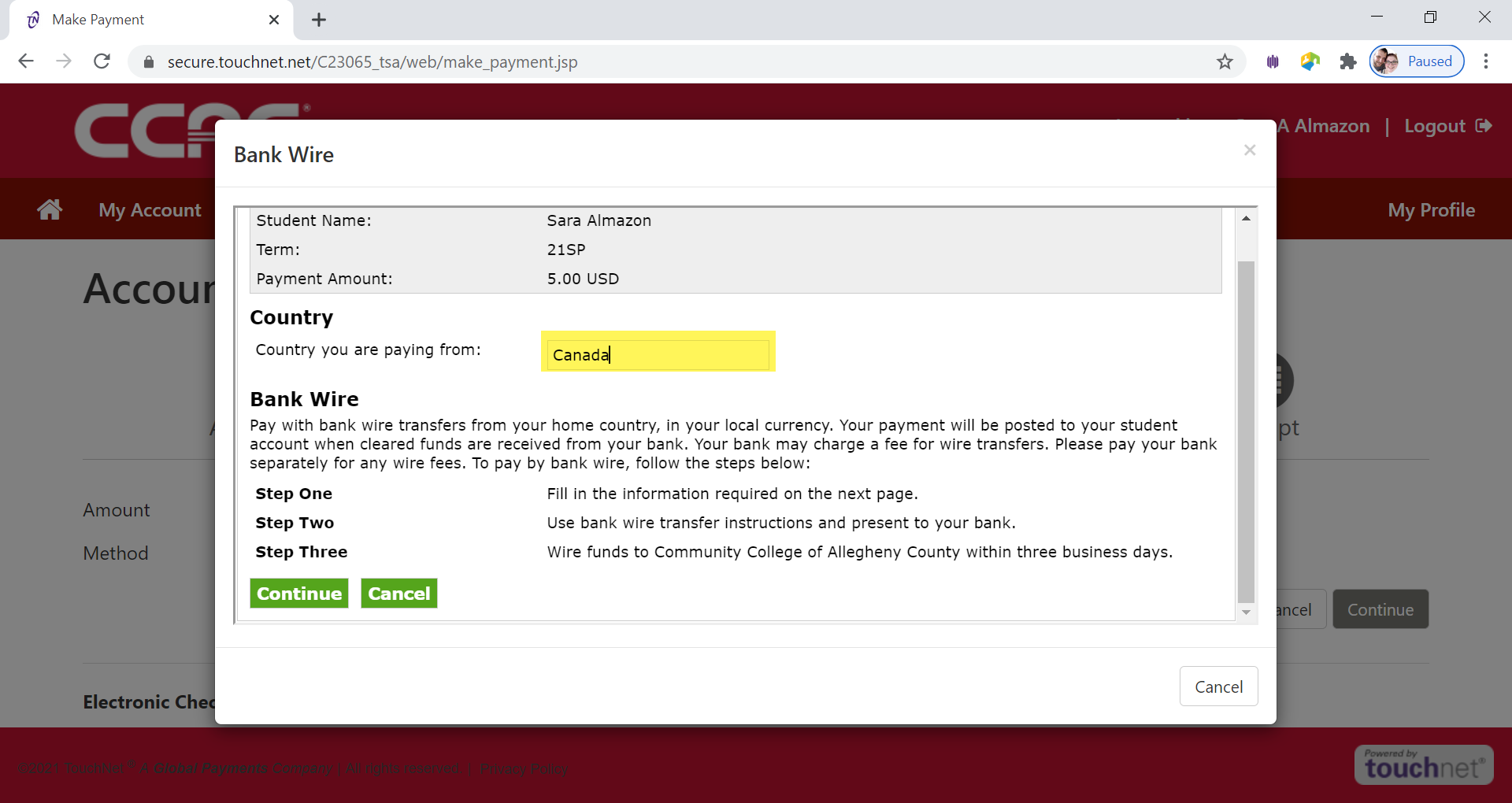
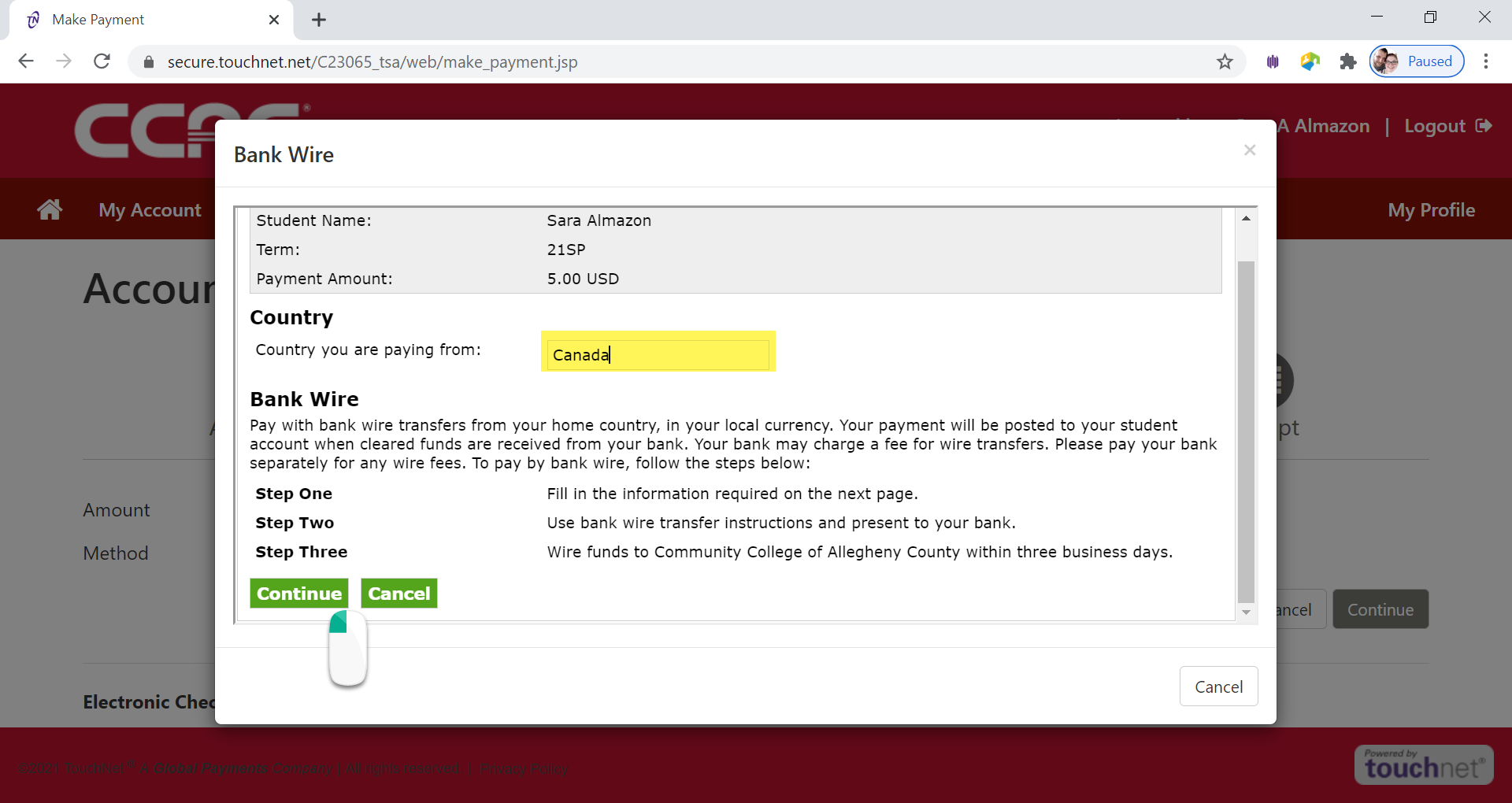
- Click Continue button
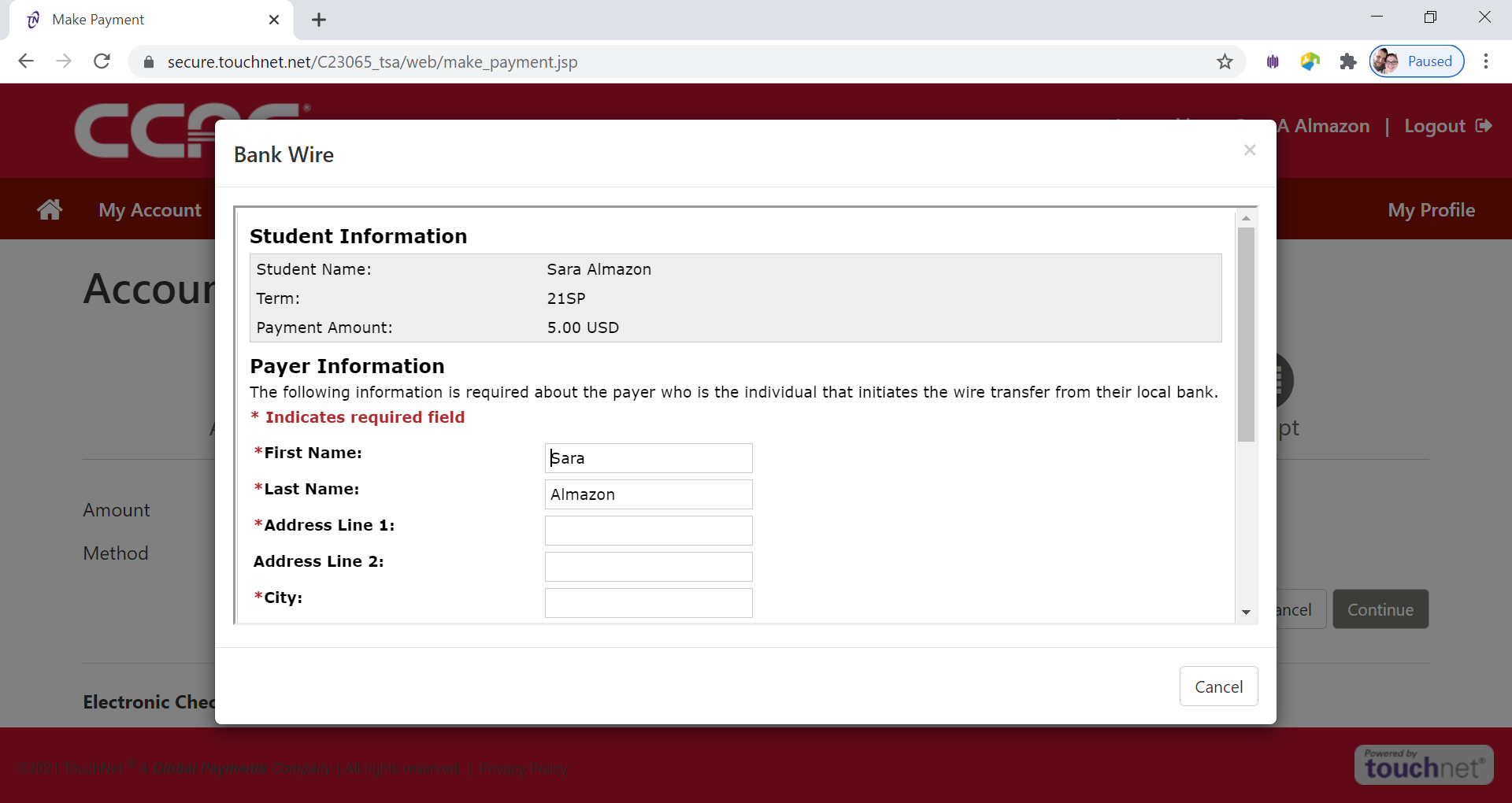
- Payer Information Page will appear
-
Fill out the address of the Payer Information
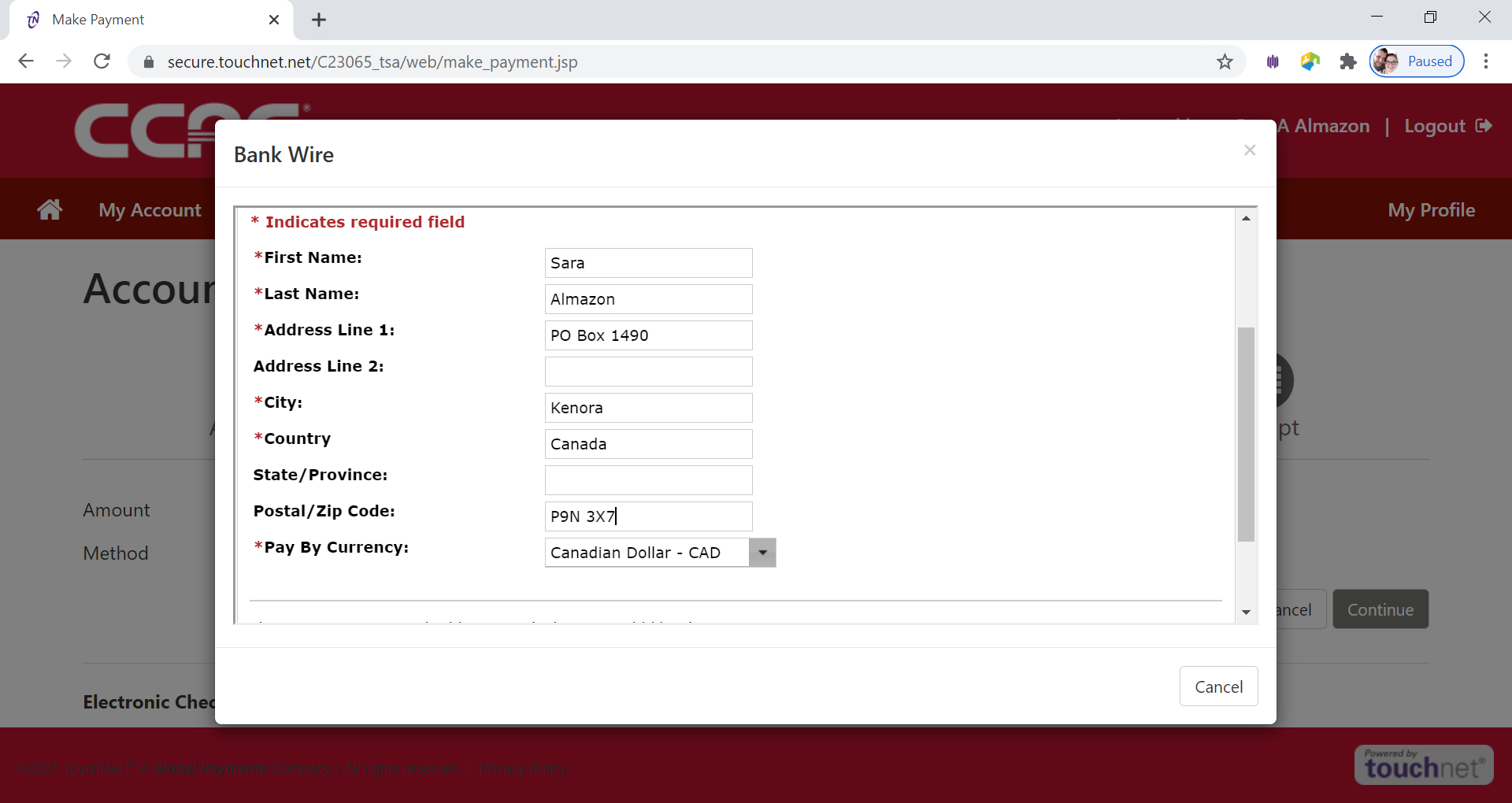
- Click Continue button
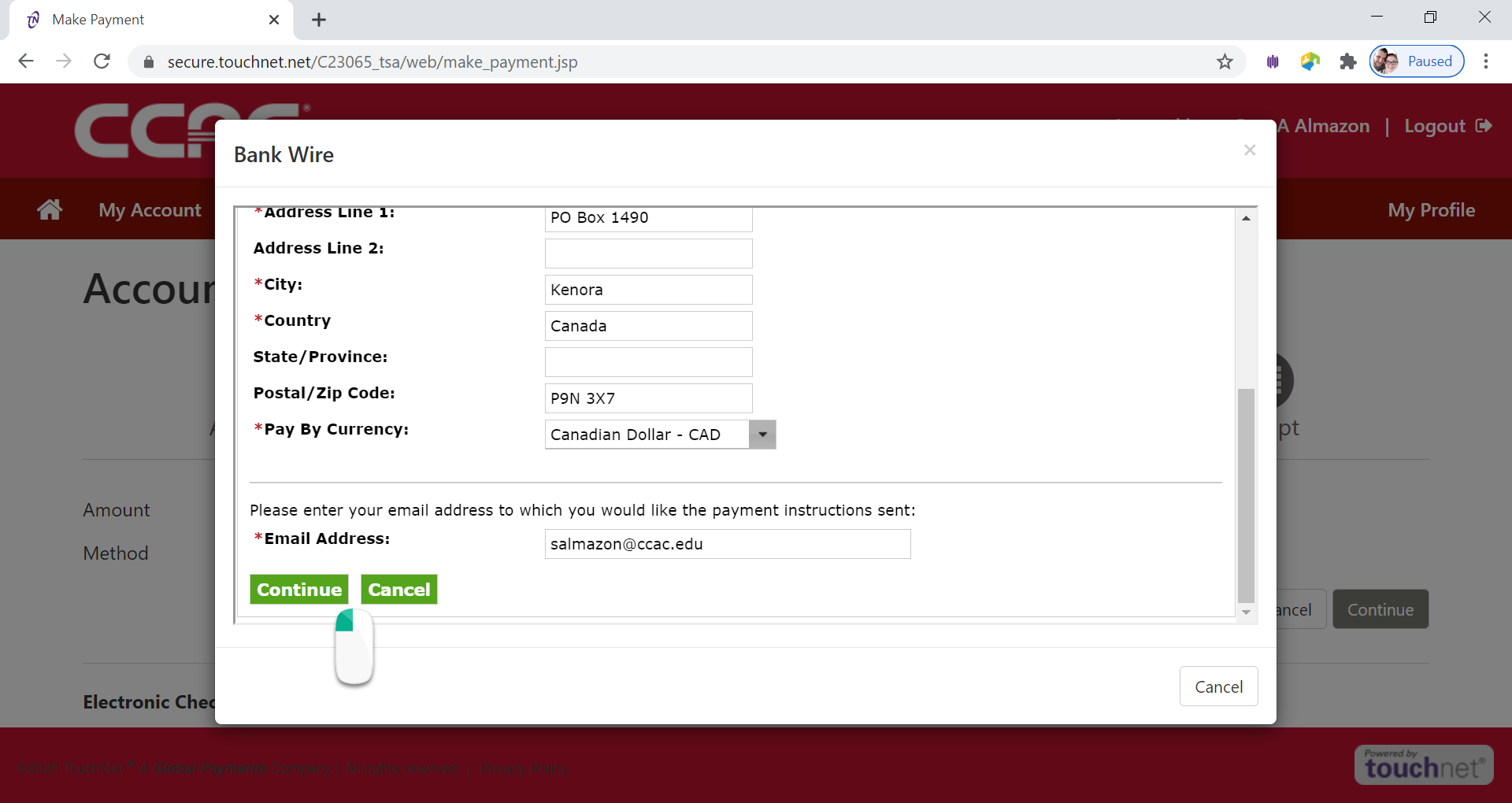
- The Guaranteed Exchange Amount page will appear
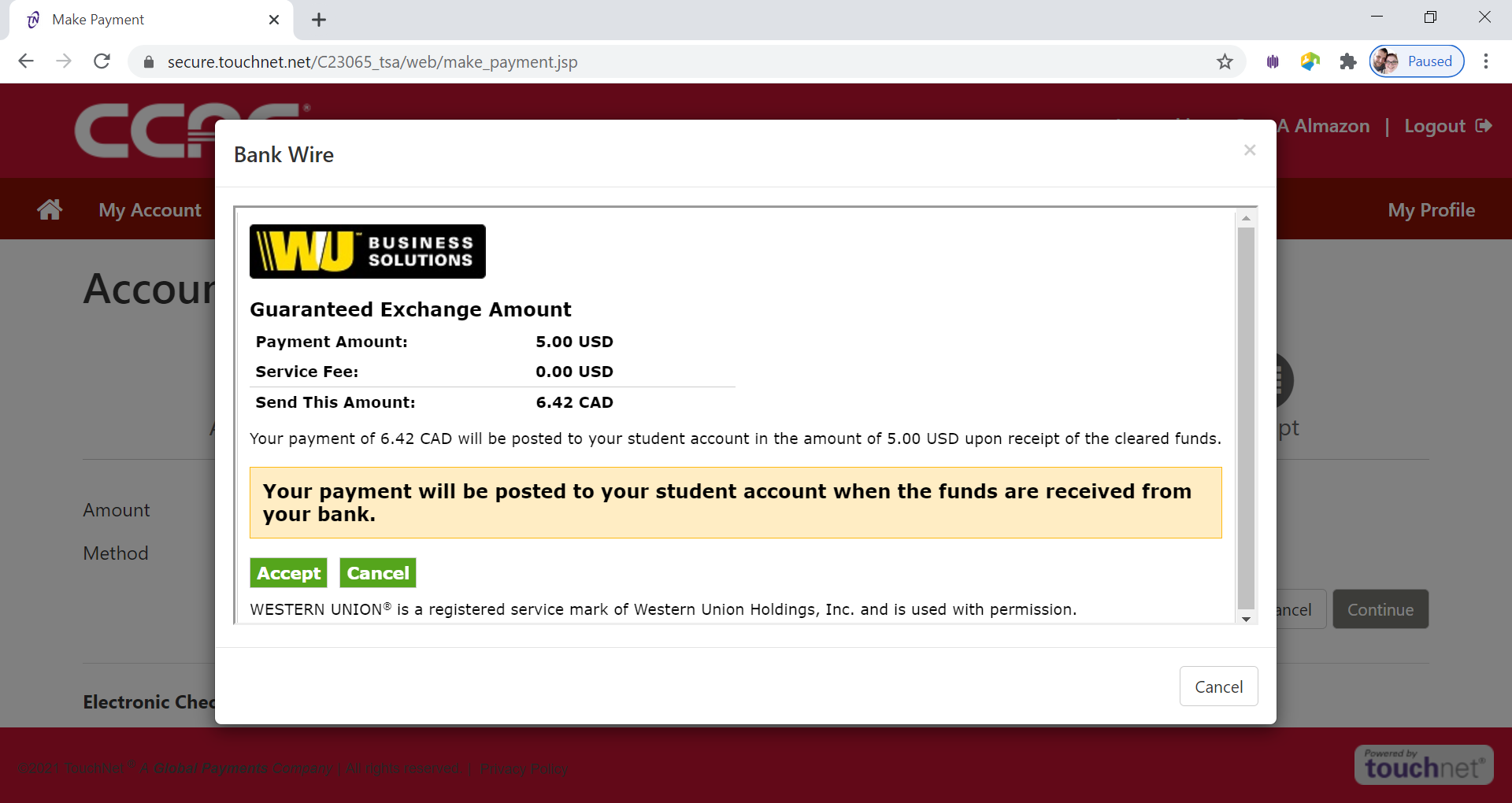
- Click Accept button
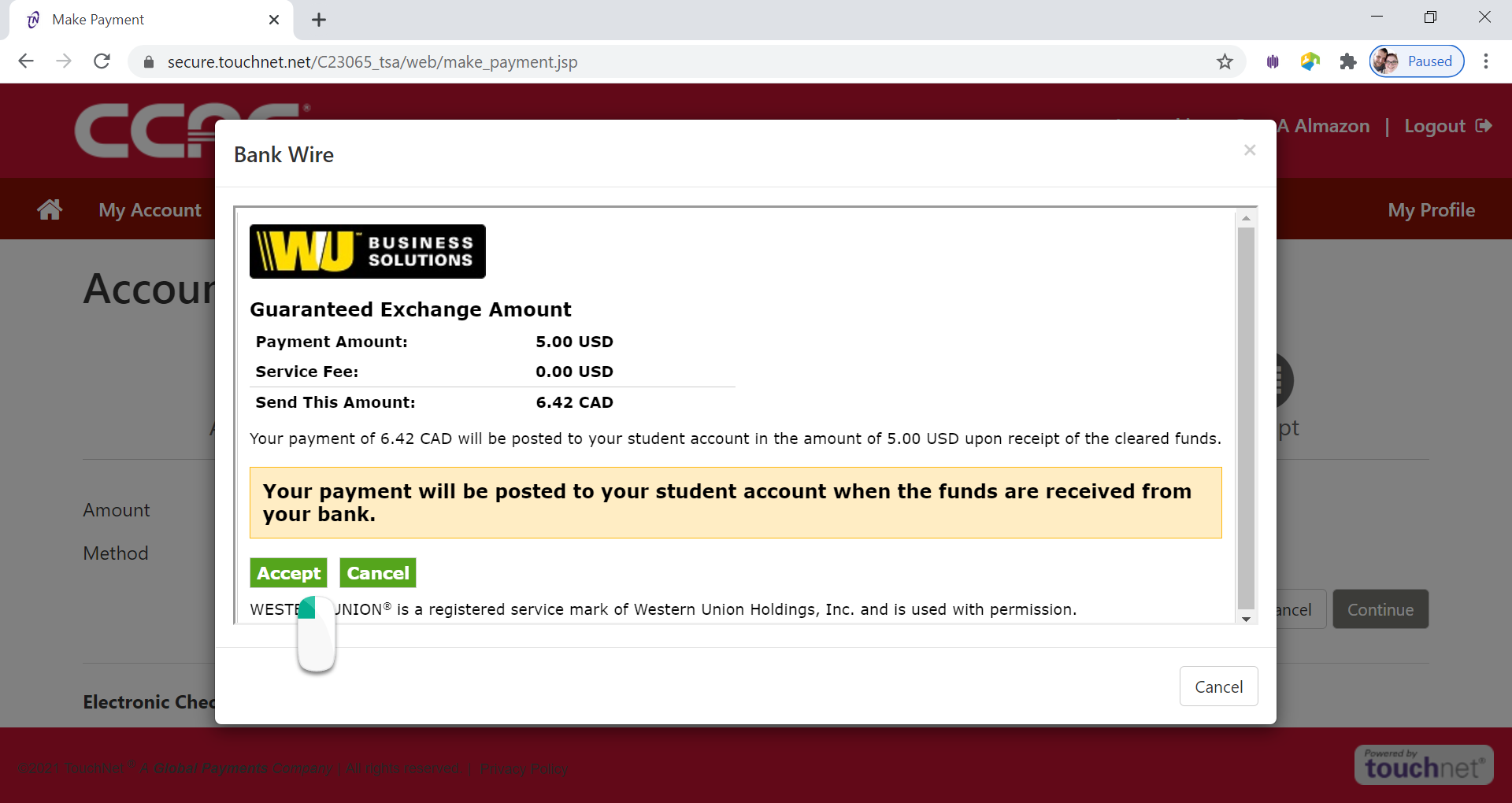
- Click Finish button
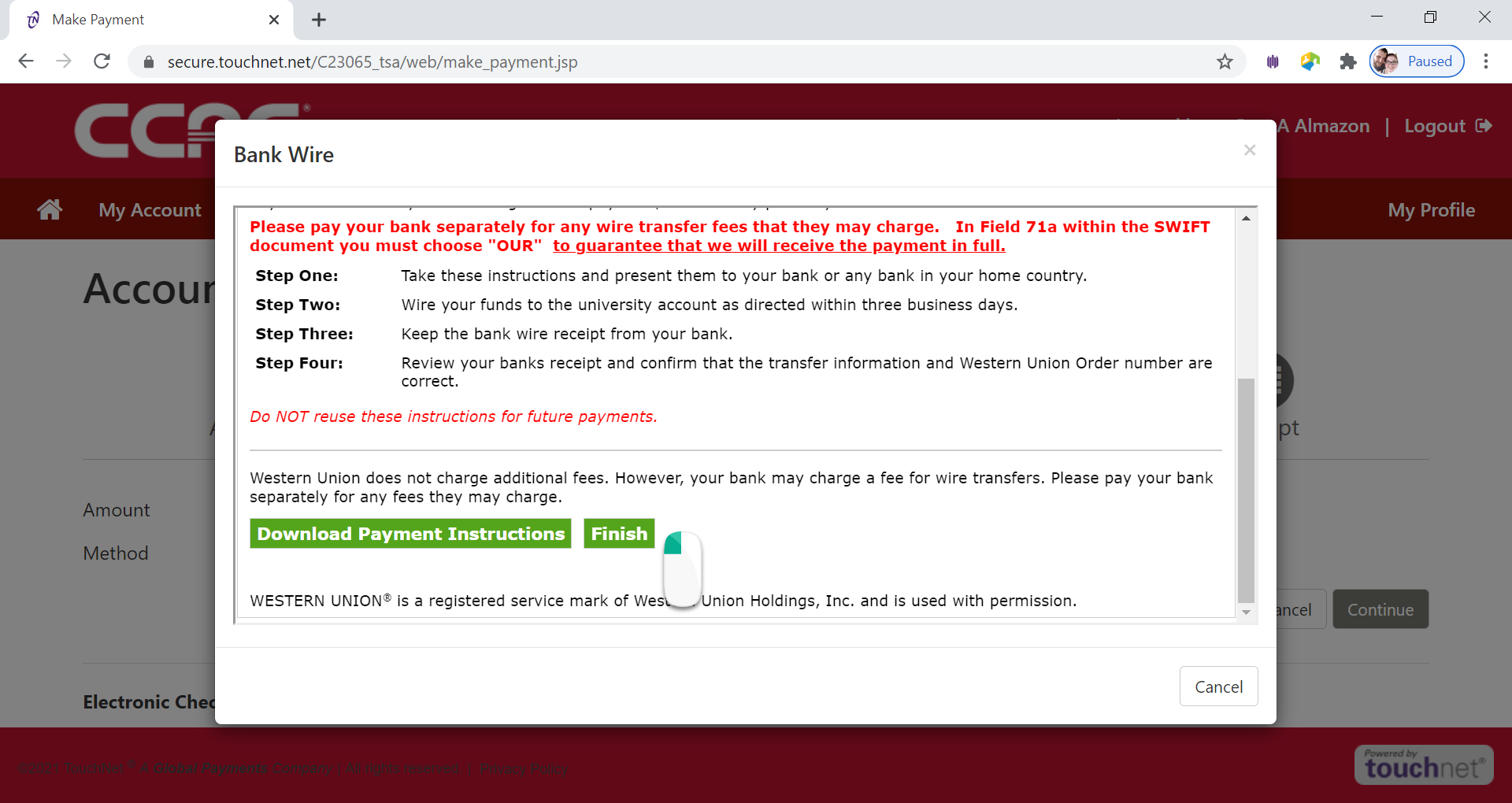
- An email with instructions will be sent to the email address you entered on the previous page.
- Payment confirmation will be sent to CCAC Academic Email
Alternative Way - Electronic Check
- Log into the Online Student Account Center - Access the Online Student Account Center - For Students
- Click Make a Payment on the Menu Bar
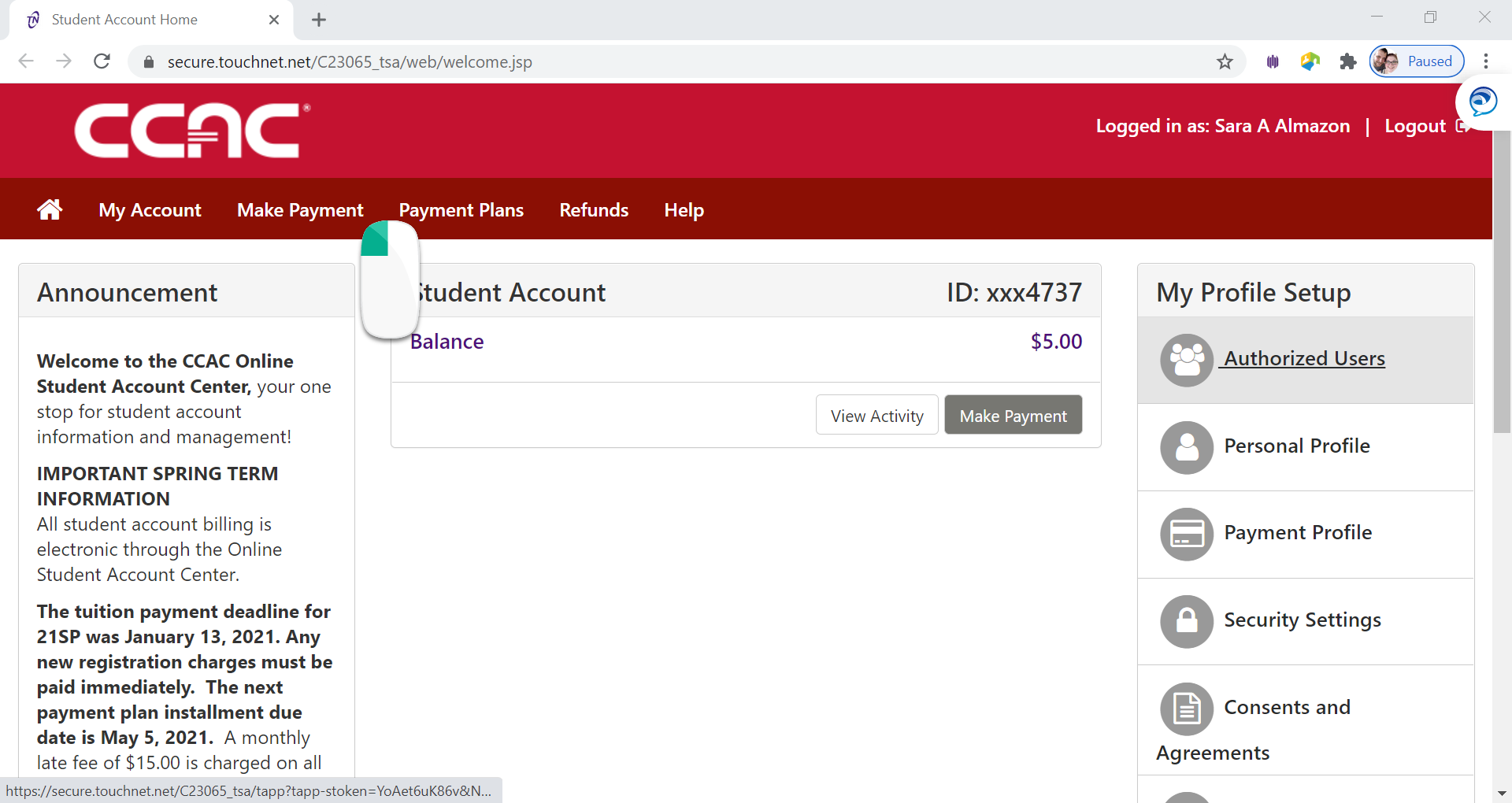
- See the Account Payment Screen
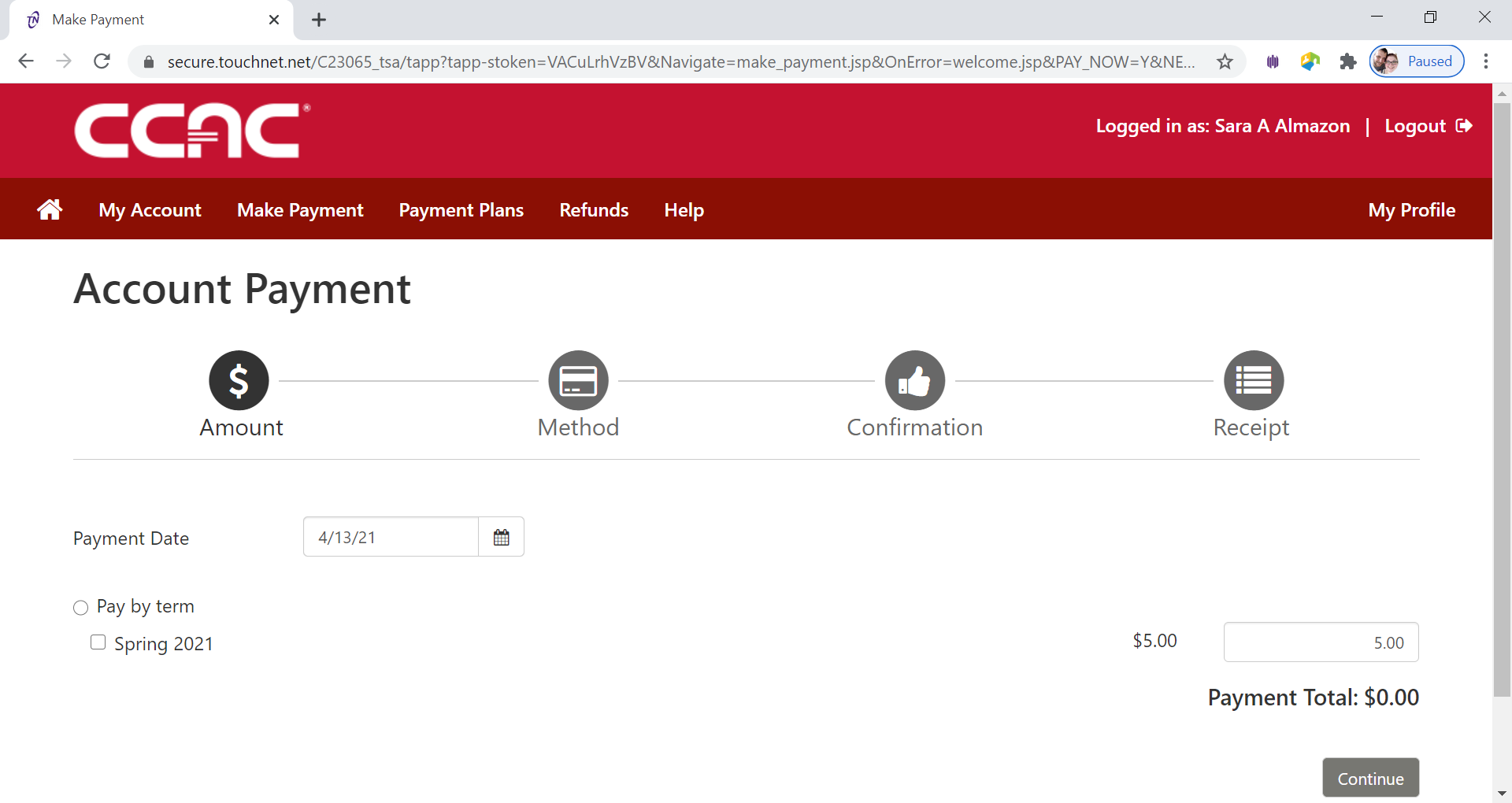
- Click Pay
by Term button
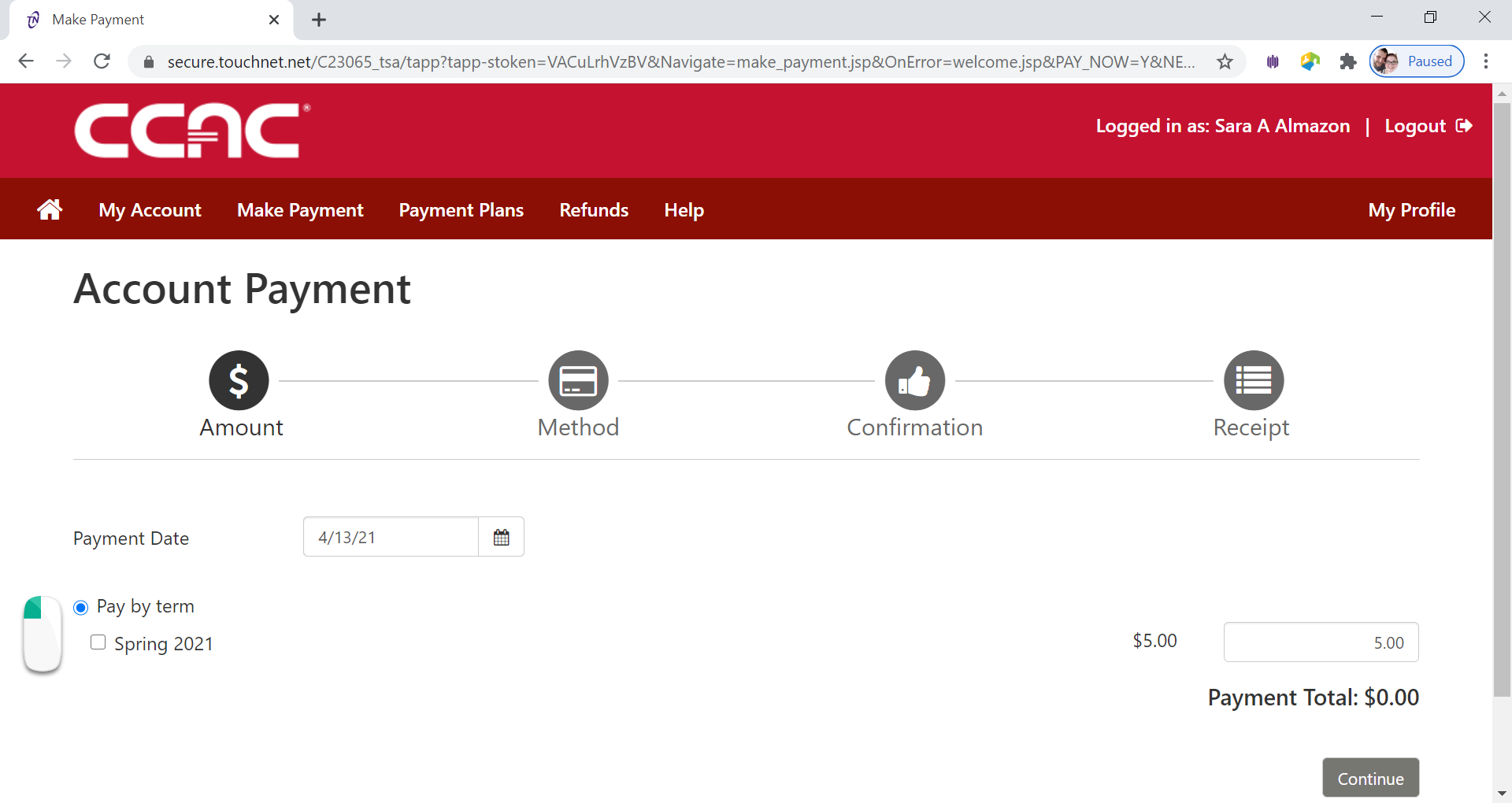
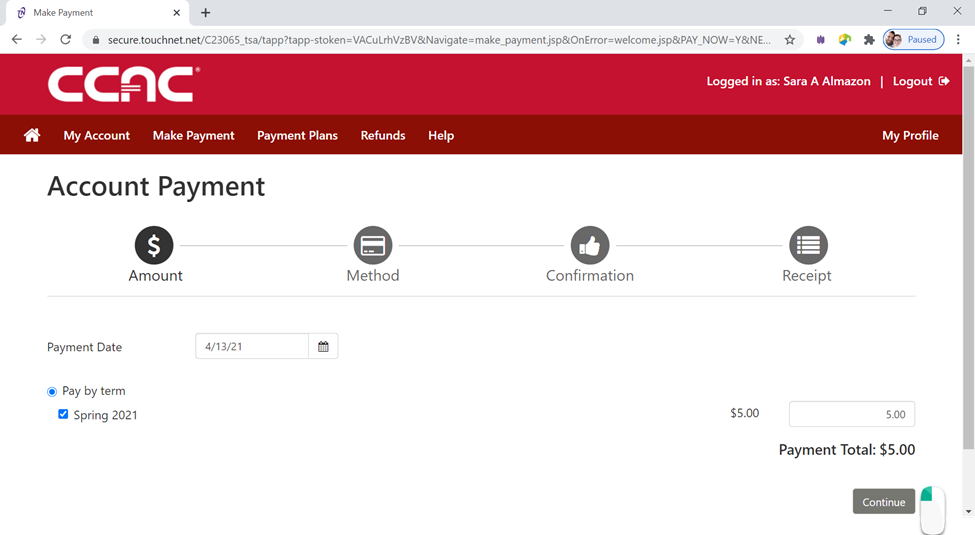
- Select the Term you want to pay by clicking the check box next to the term
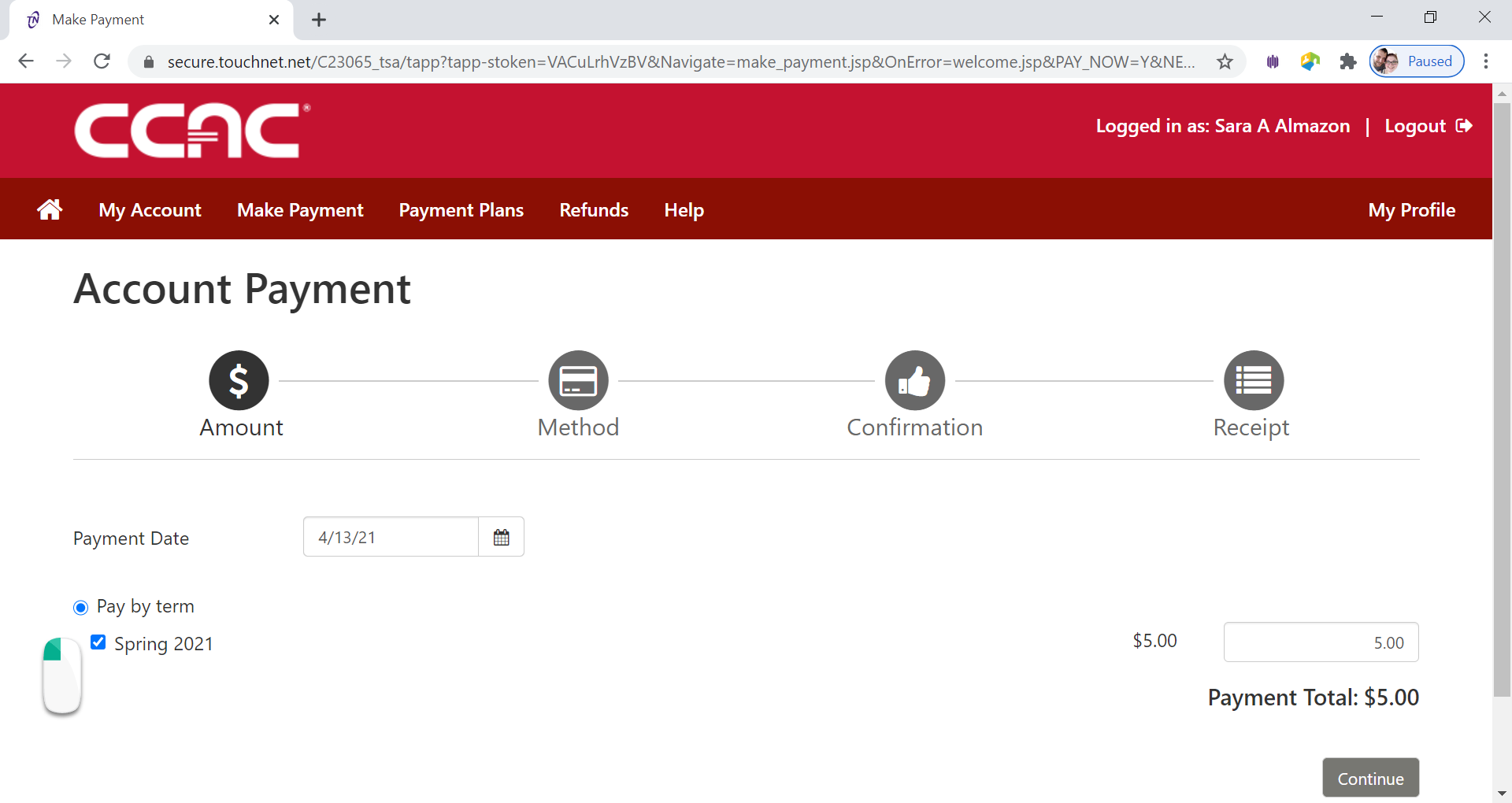
- Click Continue button
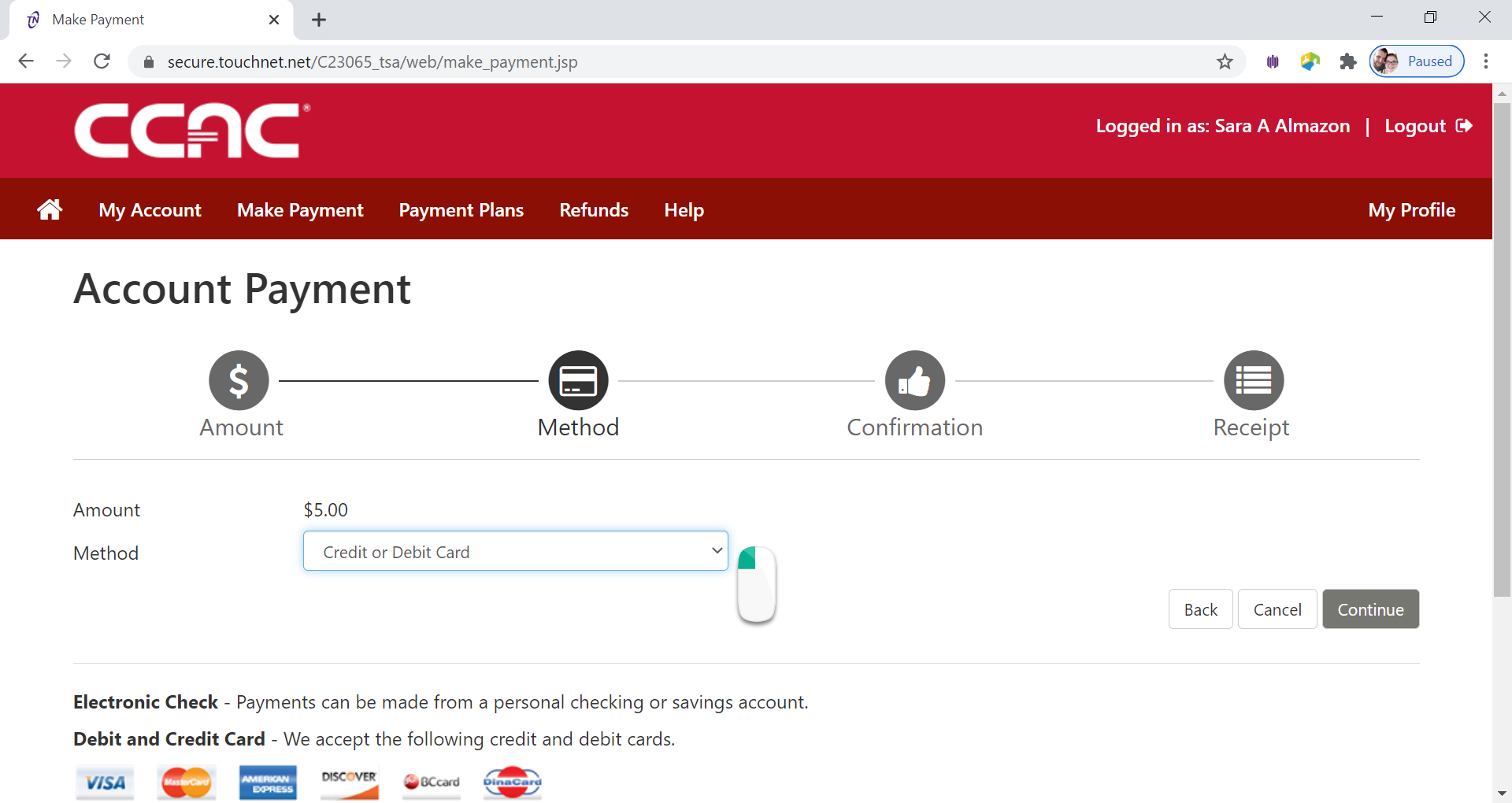
- Select Payment Method from Drop Down Menu
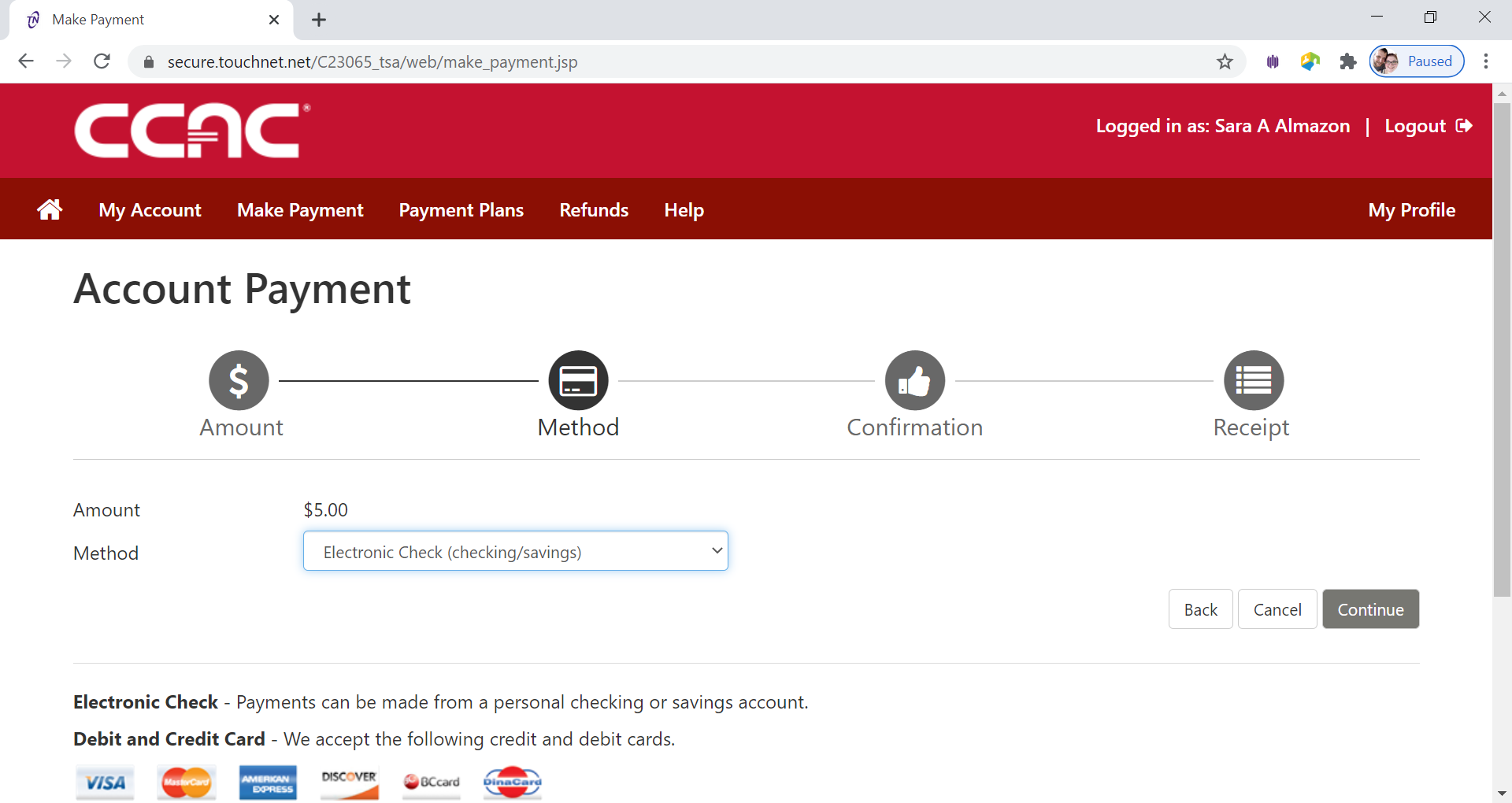
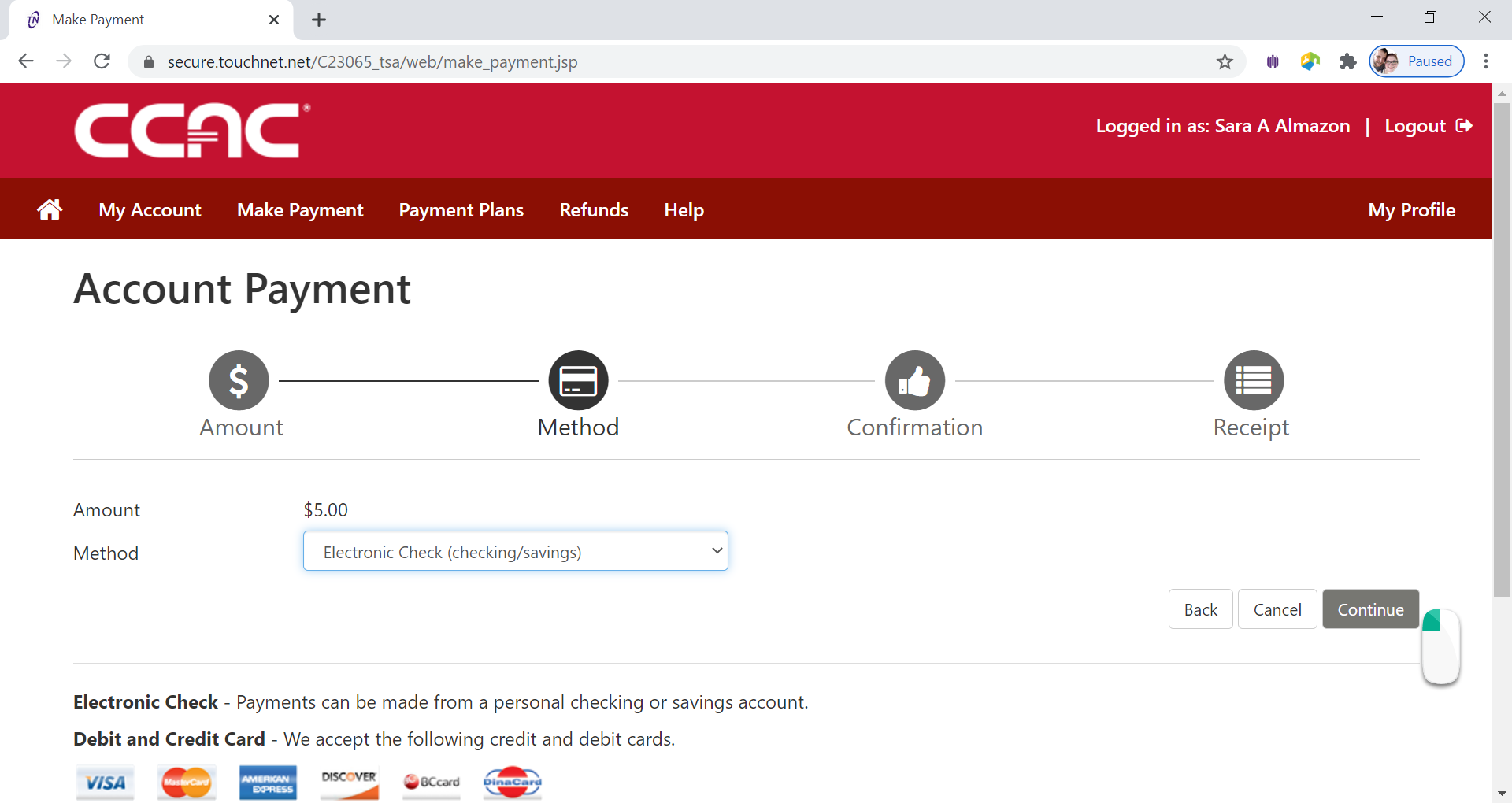
- Select Electronic Check (checking/savings) from Method drop down menu
- Click Continue button
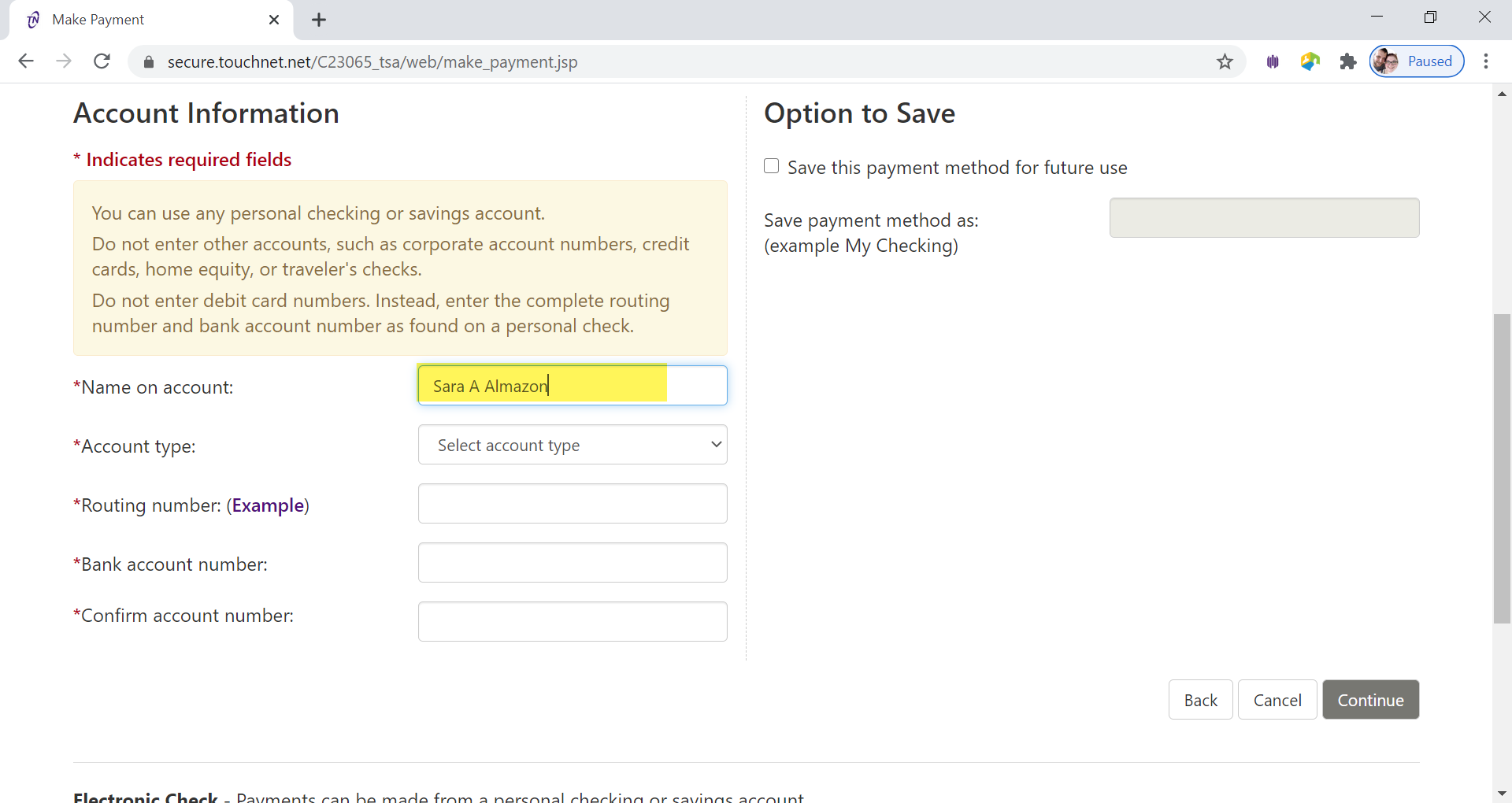
- Fill in the Name on Account box
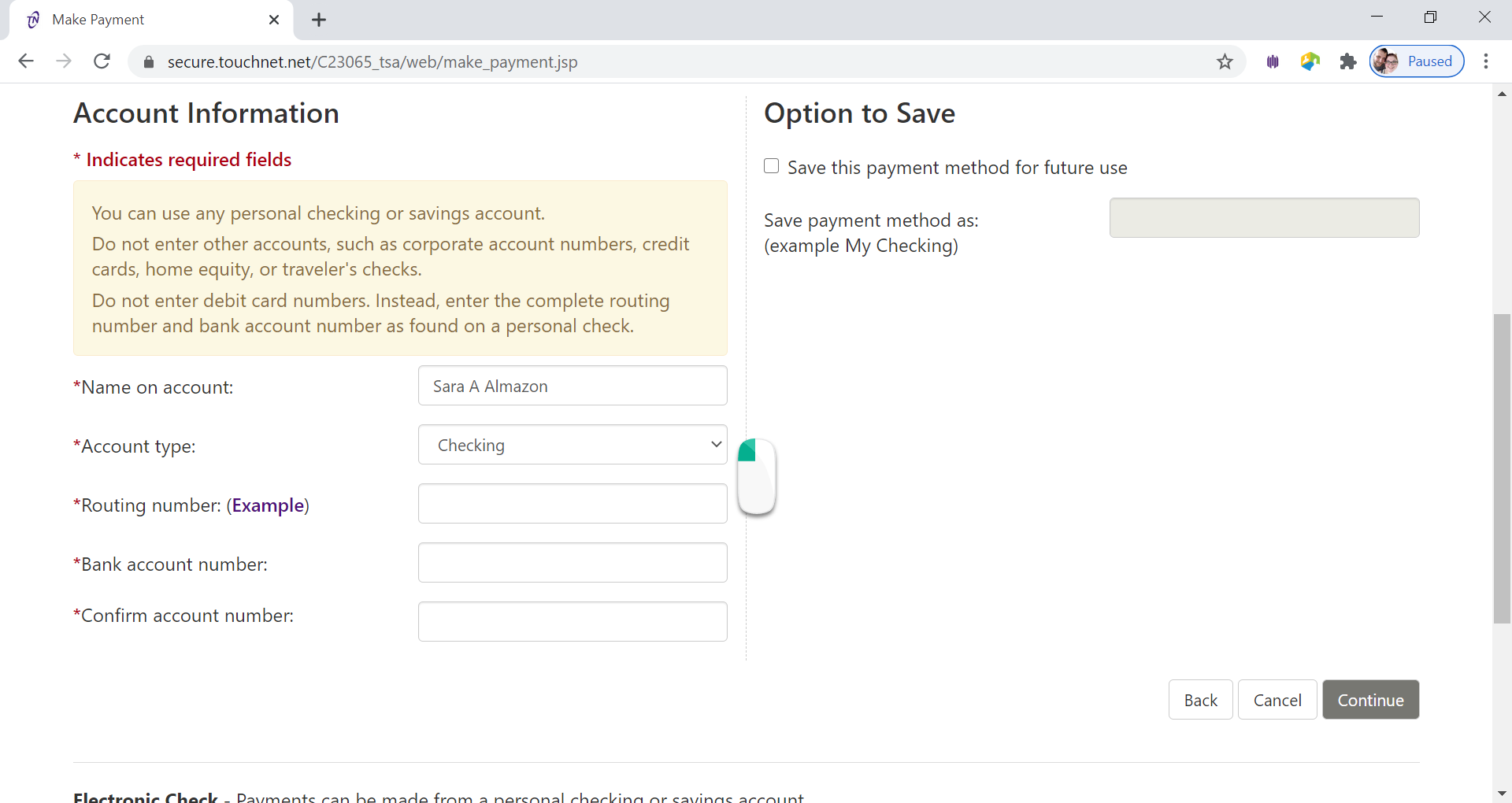
- Select the Account Type under drop down menu
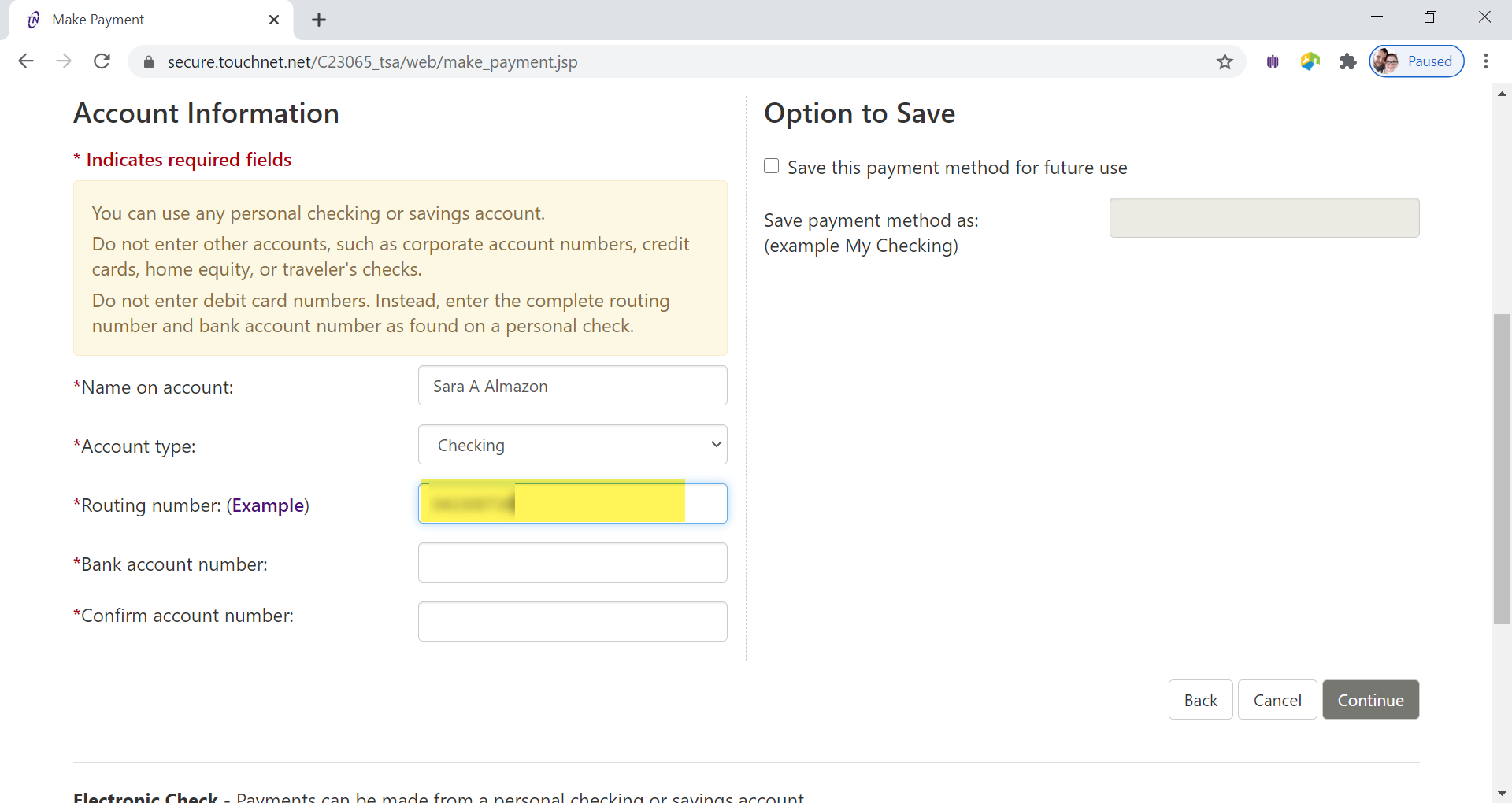
- Enter the Routing Number in Routing Number Box
- Enter the Bank Account Number in Bank Account Number Box
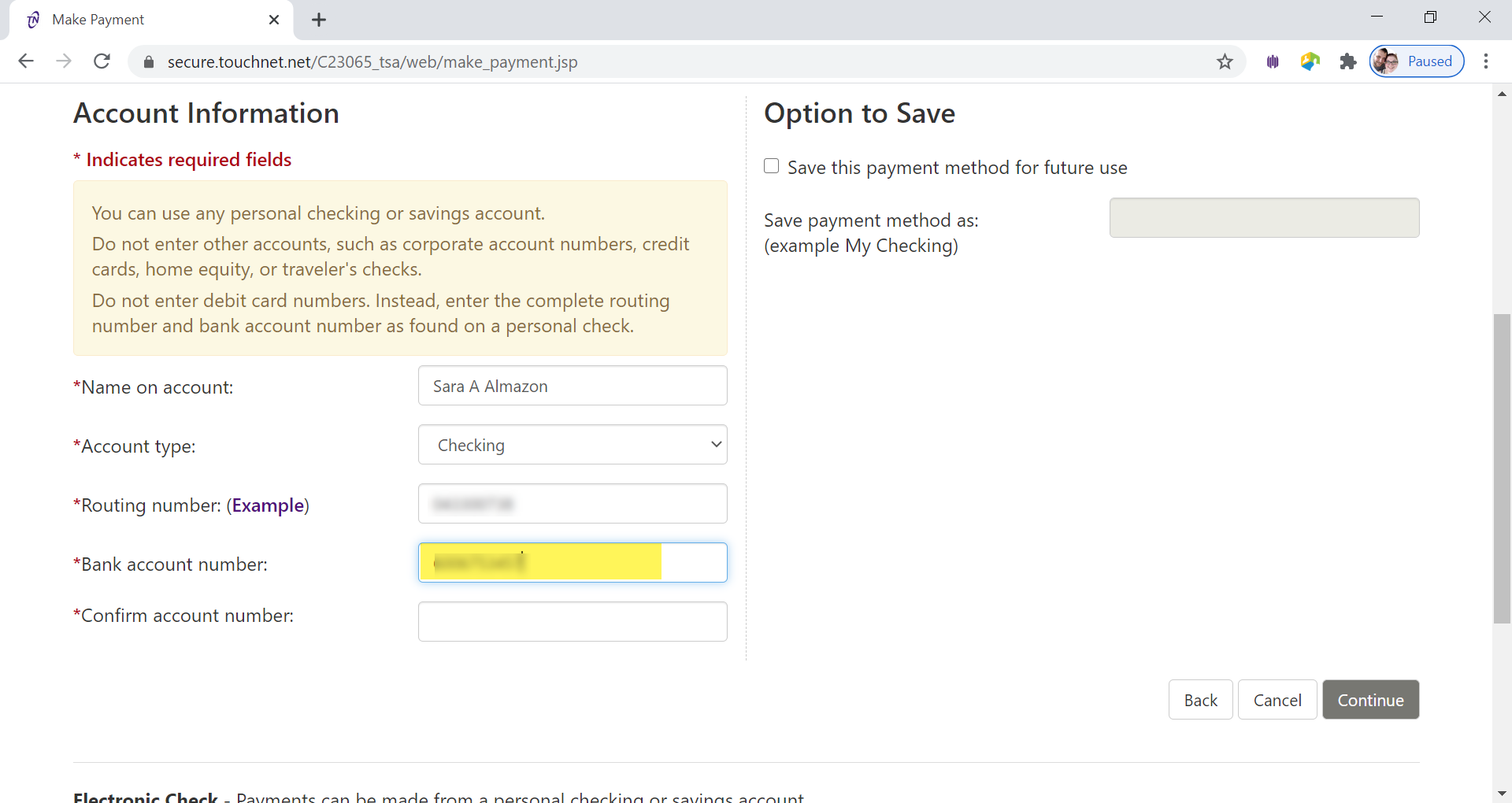
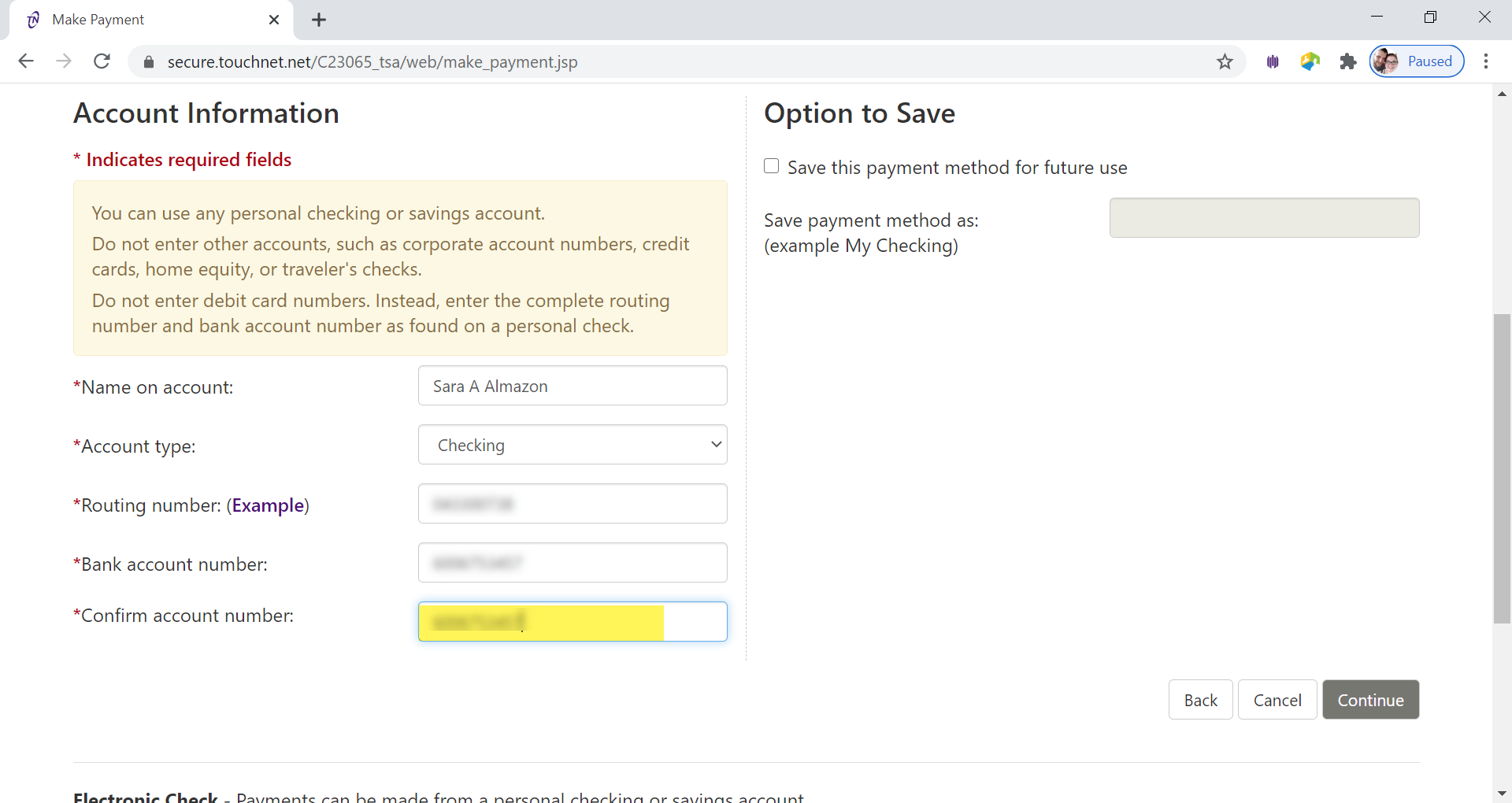
- Re-enter the Bank Account Number in the Confirm Account Number box
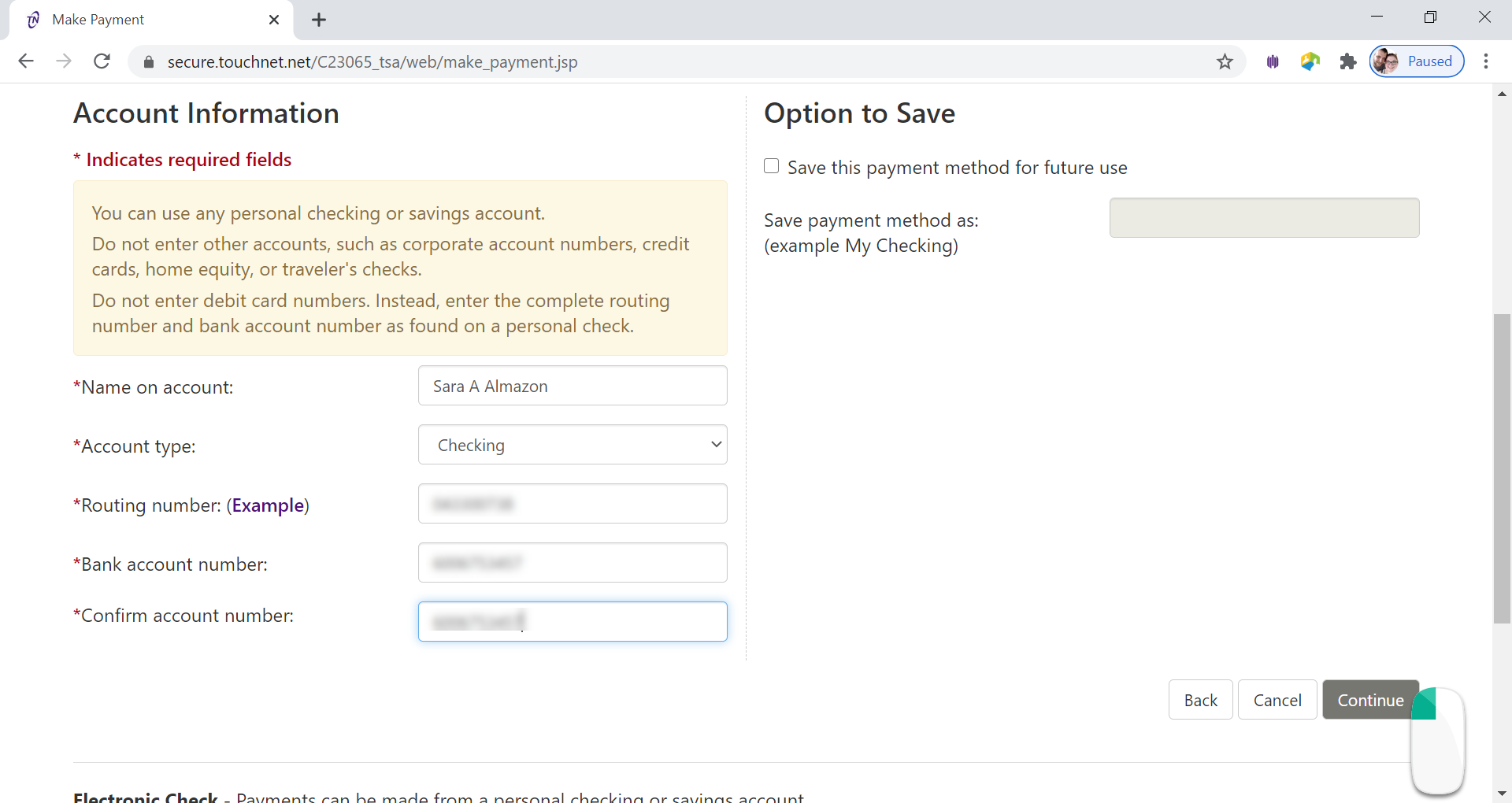
- Click Continue button
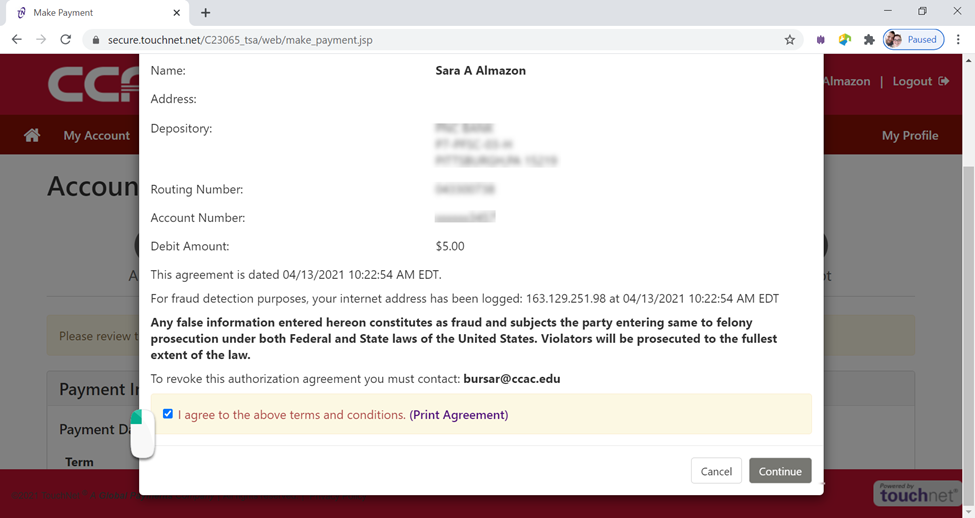
- Review the Authorization Page
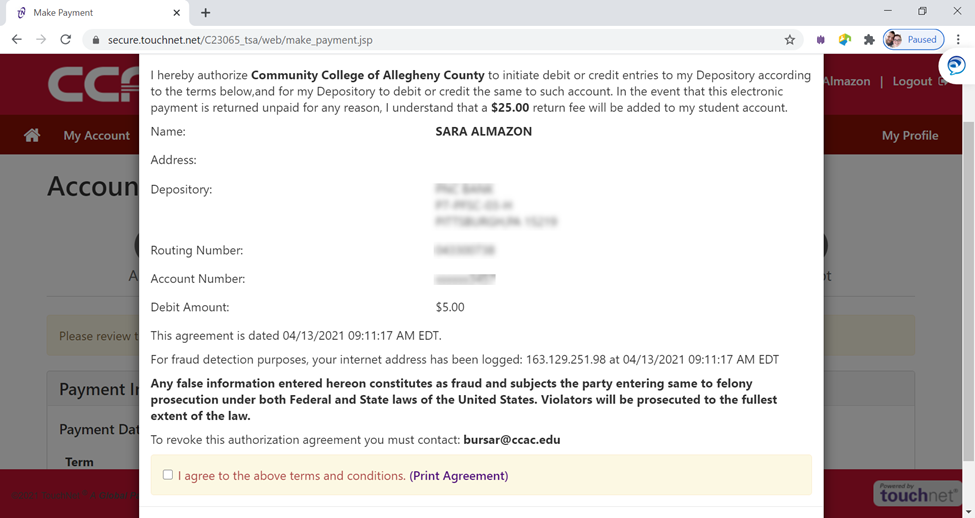
- Check I Agree box
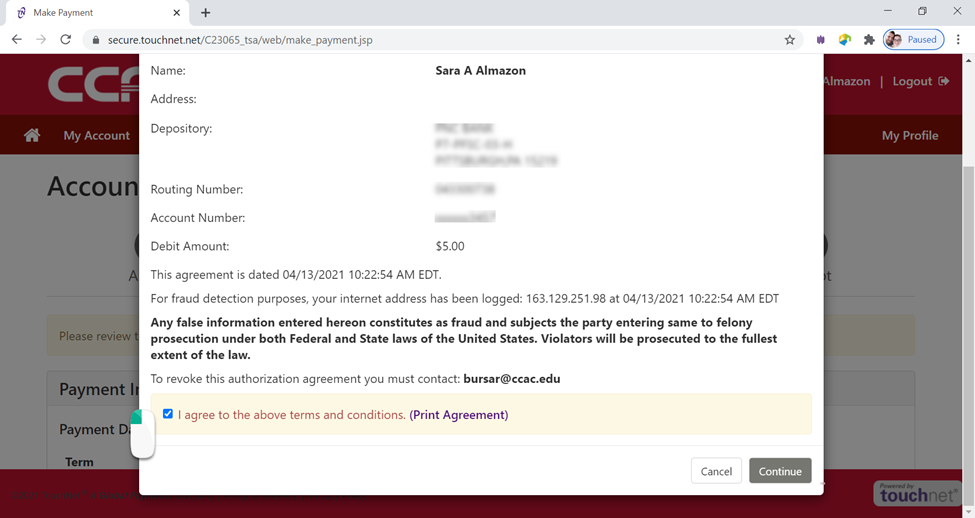
- Click Continue button
- Review Payment Information
If you need to correct anything about your payment click the back button.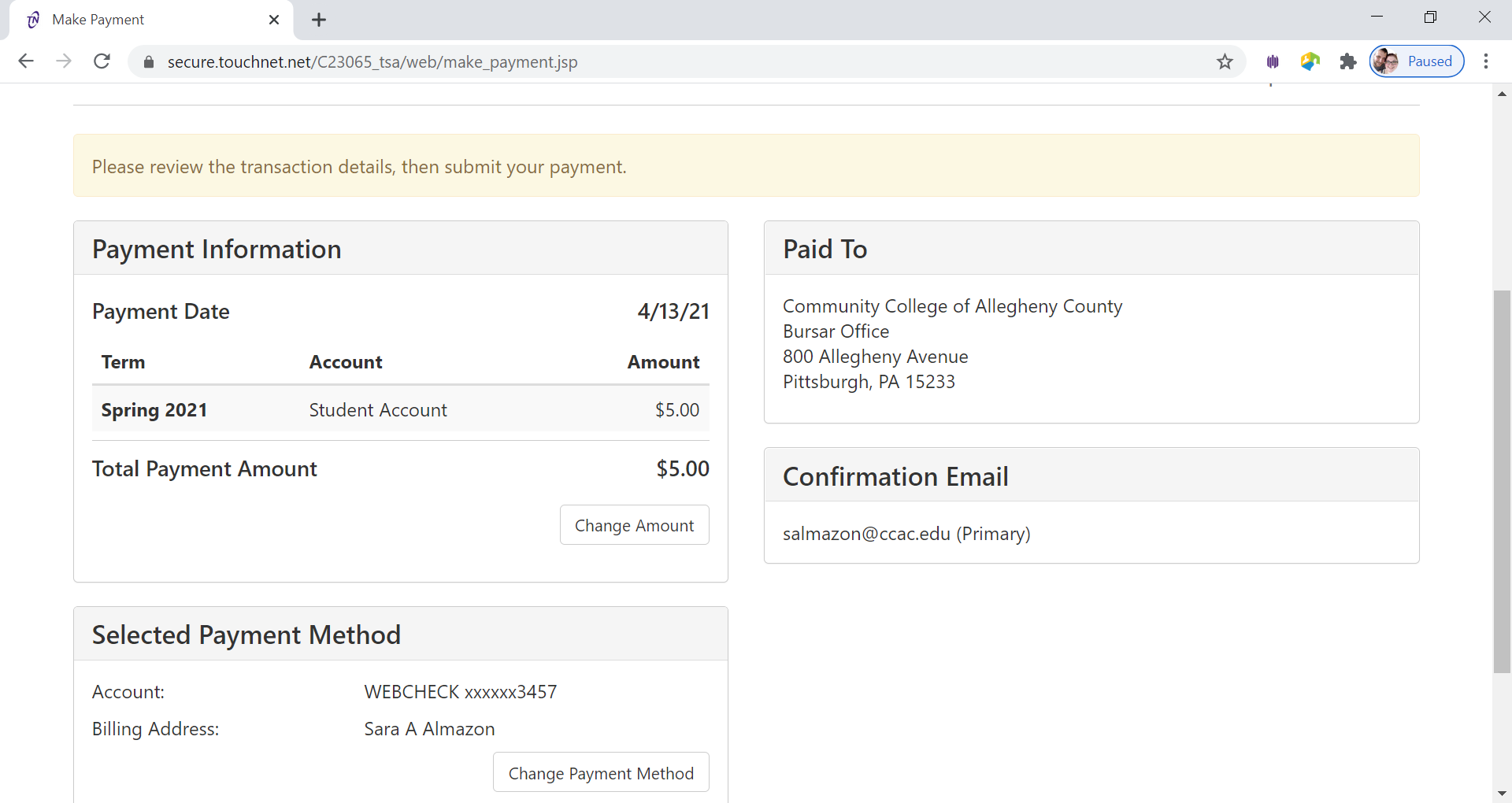
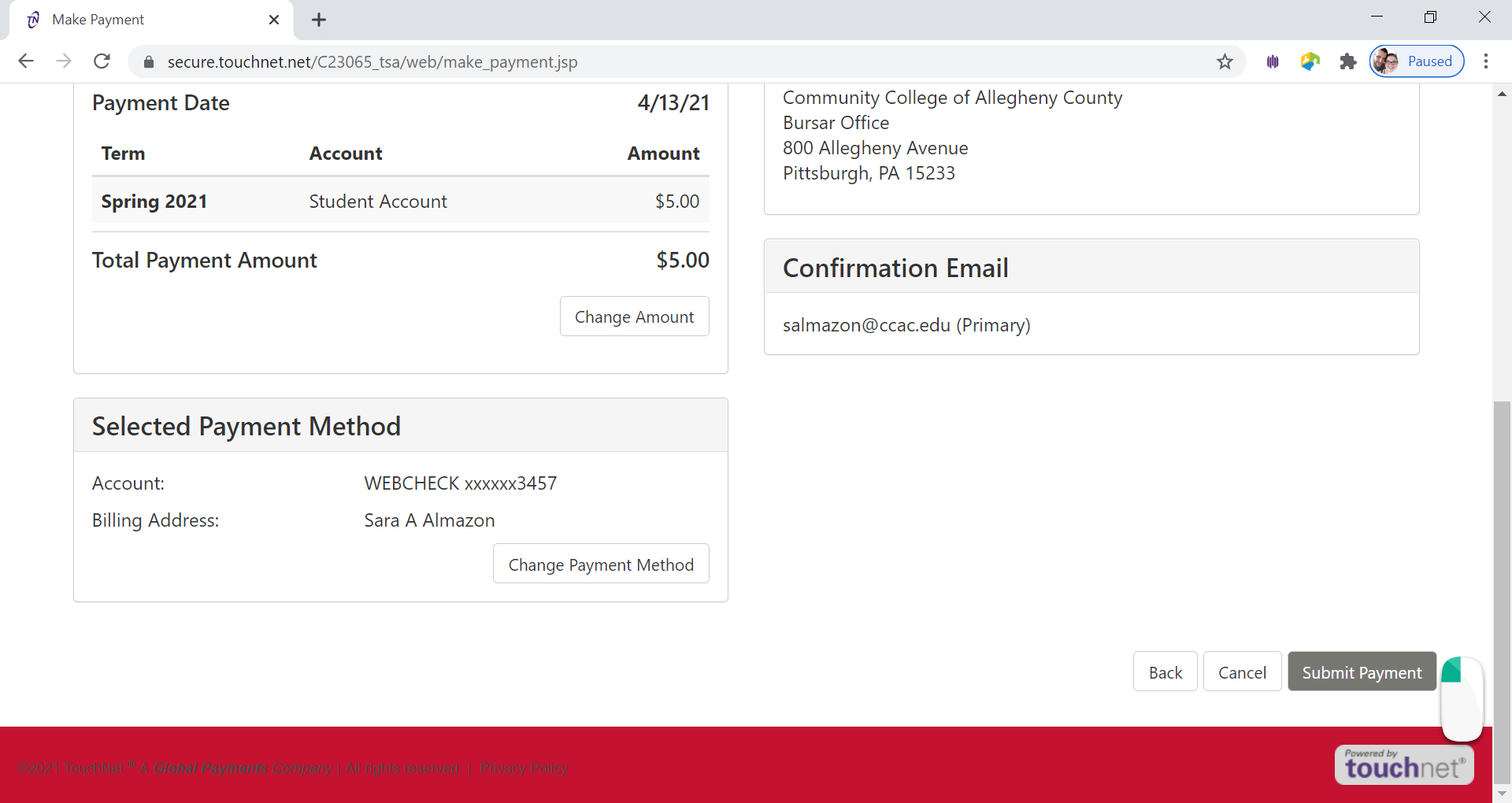
- Click Submit
Payment button
-
Confirmation page will appear
- Payment confirmation will be sent to CCAC Academic Email
You can also set up a payment plan - Setting up a Payment Plan in the Online Student Account Center
DeleteOnce Enrolled and a Student
CCAC provides students with apps and programs to use in your classes, to access college services and more! To help you be successful at CCAC, you are expected to use these systems in your college journey.
CCAC NetID Account & Multi-Factor Authentication (MFA)
Your NetID Account is a specific username and password that you will use to log into CCAC's applications and systems, such as MyCCAC, CCAC Self-Service, CCAC Email and more. It is different from the email/account you used to apply to CCAC.
Multi-Factor Authentication (MFA)
MFA adds an extra layer of protection to your login by requiring both your password and a second form of verification, such as a code sent to your phone or generated by an authentication app. There are multiple options for authentication during setup; however, the Microsoft Authenticator app is highly recommended for MFA.
CCAC Email
Once you create your NetID account and you have registered for classes, you will have access to your CCAC email. The college will send all important emails to your CCAC email as long as you are a student. This includes emails from the deans, registrar, financial aid, student life and engagement and ITS.
You can access your CCAC email through Outlook on the Web or download the Outlook app to your smartphone.
MyCCAC Hub & App

MyCCAC Hub is the one-stop-shop to find everything you need in one place! The MyCCAC Hub is where you will find CCAC resources such as:
- CCAC Email
- CCAC Self-Service
- Class Registration
- and Much More…
MyCCAC Hub App
CCAC is at your fingertips with the MyCCAC Hub mobile app. Add, remove or rearrange the tiles to access what’s most useful to you. You will be able to see you schedule, view upcoming events, see your mid-term and final grades, access CCAC Self-Service, and more!
CCAC Self-Service
CCAC Self-Service is an area where you can change/update contact information, review your financial aide award, and apply for graduation. It can be found in MyCCAC.
- Navigation Menu in CCAC Self-Service
- Updating & Confirming your contact information in CCAC Self-Service
- Adding / Editing Emergency Contact in CCAC Self-Service
- Finding your Course Materials in Self-Service
- Finding Instructor Contact Information in CCAC Self-Service
- Checking your Grades in CCAC Self-Service
- Explanation of Areas on the Financial Aid Status Page in CCAC Self-Service
- Understanding the Financial Aid Satisfactory Academic Progress (SAP) Status in CCAC Self-Service
- Finding CCAC pages and outside resources on the Financial Aid Status Page in CCAC Self-Service
- Reviewing the Financial Aid Award Year List in CCAC Self-Service
- Checking the Status of your Financial Aid Application in CCAC Self-Service
Recommended Computers and Laptop Loaner Program
Recommended Devices
Below is a suggestion of laptop or desktop requirements for a CCAC student with a general major. Please note, depending on your major (CIT, Multi-Media, Engineering, etc.), you may need a higher performing device to complete your assignments.
View Laptops in CCAC's Bookstore
General Requirements
Device Type |
Operating System |
Processor |
RAM |
Storage |
|---|---|---|---|---|
Desktop or Laptop |
Windows 11 (Home or Pro) |
i5 or i7 or greater |
8 GB or higher |
512 GB or higher |
If you are unsure what to buy, you can use the Microsoft "Help Me Choose My Device" website, to help you decide what type of computer to purchase as well. This site will ask questions based to help narrow down the computer you may need. These are suggestions made by Microsoft based on what they believe would be best based on the answer you choose.
Other Devices
- It is not recommended to use ChromeOS/Chromebook. Many applications are not compatible with ChromeOS/Chromebooks.
- It is not recommended to use Windows S-Mode
- It is not recommended to use an iPad or Android tablet or Smartphone as your main device, as these are app-based devices and have smaller viewing screens. These devices are best as a supplemental device.
Computer Resources
Students can also use the designated computers on campus or at a center to do their classwork, research or print a document.
View the list of Student Computer Resource
Loaner Laptop Program
CCAC is offering a Student Loaner Laptop Program, which gives students the opportunity to borrow a laptop. Devices may be borrowed on a semester basis and students can keep their device(s) as long as they are enrolled at CCAC. Students can reach out to the Dean of Students Office for more information about the Loaner Laptop Program.
Wireless Access and Printing/Scanning
Wi-Fi
Wi-Fi is free to all CCAC students. It is recommended to connect to the secure Wi-Fi “CCAC-Wireless.”
After You Change Your NetID Password
Once you change your NetID password, you will also need to update it to connect to CCAC-Wireless.
Printing and Scanning
Printing and Scanning is also available to students. Printers/Scanners are located through the campus/center.
Microsoft 365 (Word, PowerPoint, Excel, OneDrive)
As a CCAC student, who is actively registered for classes, you also get Microsoft 365 for free! This software suite includes Word, PowerPoint, Excel, OneNote and OneDrive. You can install this on Windows, Mac, iPad, iPhone or Android or access it through a web browser.
- MyCCAC Hub Tile Available
- Website: https://m365.cloud.microsoft/apps/
Directions for Installing Microsoft 365
OneDrive
OneDrive is a cloud storage space which will allow you to store files and easily connects and syncs to Microsoft 365 products, Windows Devices, and Blackboard.
- MyCCAC Hub Tile Available
- Website: https://ccac1-my.sharepoint.com/my
Apps & Applications
Zoom
Remote courses use Zoom as the video communication tool. Students may be required to log in with their CCAC Zoom account to access the course.
- Website: https://ccac.zoom.us/
Blackboard
Courses may utilize Blackboard as their virtual classroom. Course announcements, files, materials, test and assignments may be posted within the virtual class.
- MyCCAC Hub Tile Available
- Website: https://courses.ccac.edu/
Blackboard App
Although there is a mobile app, the Blackboard app does not fully support all functions of Blackboard as the website does.
Navigate360
Navigate360 is a toll that allows students to schedule appointments, contact enrollment services and more.
- MyCCAC Hub Tile Available
- Website: https://ccac.campus.eab.com/home
Status Page for Alerts
The CCAC Status Page will show the status of CCAC technology systems. The site will show what systems are operating normally, experiencing a problem, or under maintenance.
- Help Center Guides: Navigating of the CCAC Status Page